
PicassoTab A10
4.3Editor score
Compact 10-inch standalone design
Laminated display with active stylus
Preloaded lessons and creative apps
A standalone drawing tablet combines a display, processor, creative software, and pressure-sensitive stylus in one portable device. Unlike a conventional pen tablet that needs a computer, it lets you sketch, paint, animate, take notes, and teach wherever you go, making screen size, battery life, and app support especially important.
The products in this guide were compared using the supplied specifications and customer ratings, with attention to portability, display quality, stylus sensitivity, performance, included accessories, and standalone capability. The list includes seven directly standalone tablets, along with three Wacom options that require a computer and serve as important alternatives for artists who value mature pen technology.
Each review explains the strongest reasons to consider the device, along with practical limitations visible in the available information. Ratings, configurations, and promotions can change, so check the current product listing and verify compatibility with your preferred drawing software before making a final purchase.
4.3Editor score

4.2Editor score

4.5Editor score
As an Amazon Associate we earn from qualifying purchases.
This side-by-side comparison covers standalone models and computer-dependent Wacom alternatives, highlighting display size, stylus capabilities, performance, storage, and the most important portability or software considerations.



The RubensTab T11 Pro is a genuinely self-contained drawing tablet with a 10.1-inch Full HD IPS display, a pressure-sensitive pen, and a 4.4 customer rating. Its main attraction is freedom: no computer, hub, or complicated setup is required to begin sketching, making it a practical option for travelers, students, and artists who work away from a fixed desk.
We may earn a commission when you buy through this link, at no additional cost to you.
The display provides 1920 by 1200 resolution, wide viewing angles, and multi-touch control for zooming, panning, and scrolling. A battery-free pressure-sensitive pen provides adjustable pressure sensitivity, while a 5800mAh battery supports up to five hours of continuous use. The included adjustable stand case offers a convenient way to position the device at a desk or keep it protected during transport.
Its main compromise is the combination of a modest battery and a relatively compact 10.1-inch canvas. Long sessions may require access to USB-C power, and artists working on detailed landscape compositions may find larger models more comfortable. The supplied specifications also list a broad set of preinstalled creative tools without naming each one, so buyers who depend on a particular application should verify compatibility before purchasing.
Despite those caveats, the T11 Pro is a strong all-round choice for a portable sketch device. It balances a sharp screen, natural pen input, battery operation, Wi-Fi access, and useful note-taking features without becoming excessively large. It is especially suitable for concept sketches, classroom work, field notes, and artists who want the freedom of a tablet that works independently.
Choose the T11 Pro if you want a compact standalone canvas with dependable everyday specifications. If you need a much larger work area, more processing power, or a longer battery specification, the X11, X14, KAMVAS Slate 11, and RubensTab T14 offer different balances worth comparing.
The 10.1-inch Full HD IPS panel is a practical middle ground for portable artwork, with enough resolution for detailed sketches, notes, and light illustration. Its wide viewing angles also make the device more flexible when it is propped up rather than viewed straight on.
Because it also works for meetings, classroom work, brainstorming, online resources, and cloud storage, the T11 Pro can serve as more than a specialized illustration tool. That versatility makes it appealing for buyers who want one device to cover several creative and academic tasks.
We may earn a commission when you buy through this link, at no additional cost to you.
The PicassoTab A10 offers one of the most approachable ways to begin using a standalone drawing tablet, combining a compact 10-inch screen with a 4096-level active pen and preloaded creative software. Its 4.3 rating reflects a broadly useful package, while the absence of a required computer lowers both the cost and complexity of getting started.
We may earn a commission when you buy through this link, at no additional cost to you.
The laminated display is designed to reduce glare and parallax, giving the stylus a smoother, more paper-like drawing experience. Five preloaded applications support drawing, painting, animation, tutorials, and guided lessons, while lifetime upgrades for Concepts and Artixo add structured learning content. The box also includes a tablet case, drawing glove, universal power adapter, and preinstalled screen protector.
Performance comes from an octa-core processor, 6GB of RAM, and 64GB of storage that can be expanded as needed. That specification is appropriate for drawing, schoolwork, streaming, and ordinary multitasking, although the 64GB starting point is less generous than the 128GB offered by the X11 and X14. The compact display also offers less working space than larger alternatives.
For beginners, students, and casual artists, the A10 is a particularly well-rounded entry point. Guided exercises help new users learn, while the laminated panel and high-level active pen provide useful drawing fundamentals without requiring a separate display or computer. It is less compelling for professionals who need maximum screen area, advanced workstation performance, or a broad professional software ecosystem.
This is the best budget pick in the guide when portability and affordability matter more than a large canvas. It also makes a good travel or classroom companion. Buyers should verify the exact apps and accessories currently included, since bundles can change, but the core proposition of a portable standalone tablet remains compelling.
Artixo tutorials, guided practices, and Xplore drawing guides help users build basic skills before moving into more advanced workflows. These features are especially useful for children, students, and adults transitioning from traditional media to a digital stylus.
The included case, glove, adapter, and screen protector reduce the need to purchase basic accessories immediately. A10 buyers also gain a layered app bundle, although the included promotional value of those extras should be evaluated against the product's current configuration.
We may earn a commission when you buy through this link, at no additional cost to you.
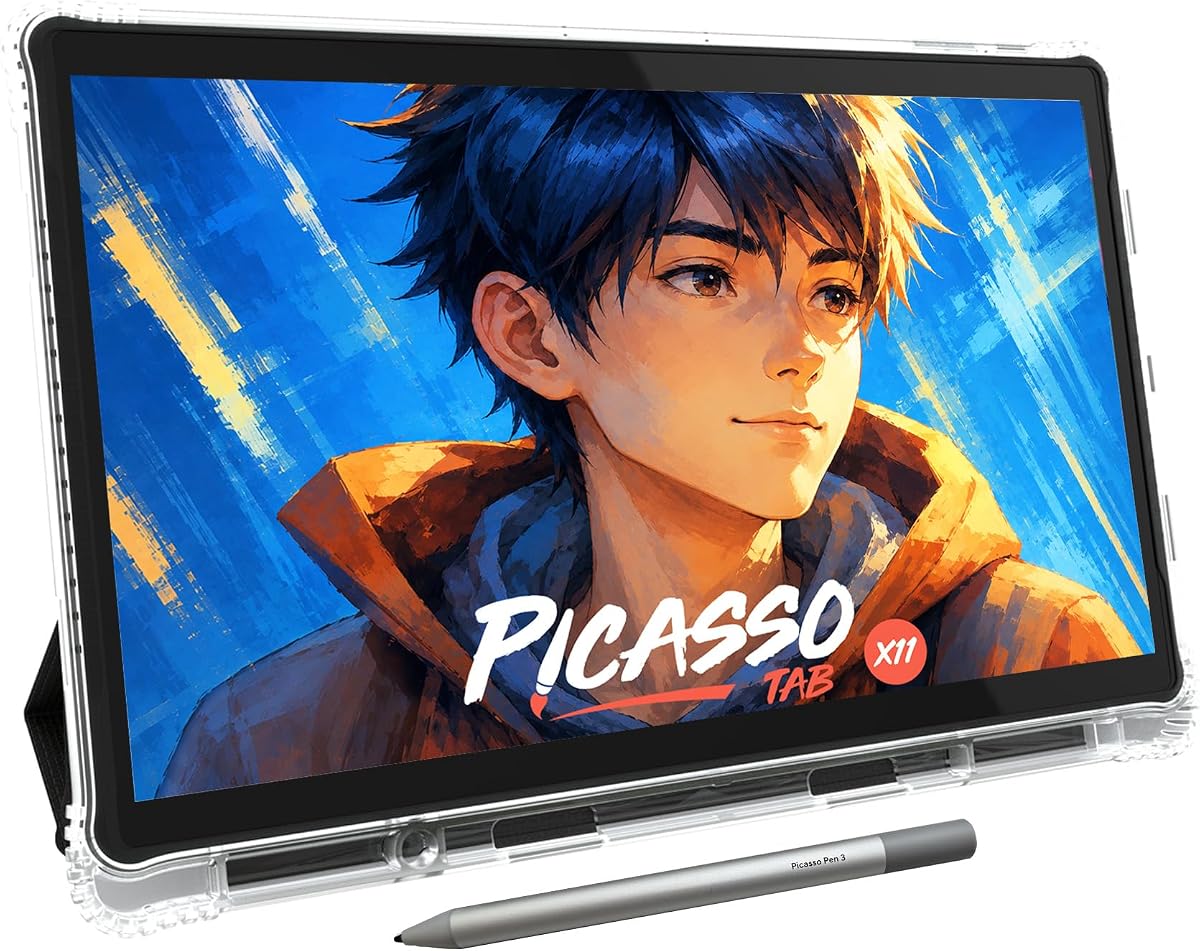
The PicassoTab X11 expands the standalone concept into a more immersive 11-inch workspace while retaining a portable format. Its fully laminated 2K screen, upgraded 4096-level stylus, and 4.2 customer rating place it between the compact A10 and the much larger X14, making it a sensible middle option for sketching, illustration, schoolwork, and animation.
We may earn a commission when you buy through this link, at no additional cost to you.
Full lamination helps minimize parallax and glare, allowing the stylus tip to sit closer to the visual surface and making strokes feel more natural. The preloaded package includes five creative applications plus lifetime upgrades for Concepts and Artixo. A case, drawing glove, universal power adapter, and preinstalled screen protector make the bundle friendly to first-time standalone users.
An octa-core processor, 6GB of RAM, and 128GB of storage provide more room for artwork and applications than the A10. Storage can reportedly expand to as much as 1TB, and the listed specifications state that the tablet can manage drawing software, school tasks, streaming, and multitasking. However, the supplied information does not state a battery capacity or expected runtime, so buyers who work away from power should investigate that detail.
The X11 is best for users who find the A10's 10-inch screen too confined but do not want the bulk of a 14-inch tablet. Its 2K resolution is also a meaningful upgrade for detailed work. It may not be the first choice for a professional requiring a desktop-class color workflow, but it offers a strong balance of display area, learning resources, and portability.
Overall, the X11 is a flexible all-rounder for students, developing artists, and anyone creating in short sessions away from a desk. Check current app availability, battery information, and accessory contents before ordering, but the core hardware specification supports a convincing standalone workflow.
The higher-resolution 11-inch panel provides more room for fine lines, small interface elements, and detailed illustrations. Combined with full lamination, it also creates a more convincing direct-drawing surface than a simple offset display.
The 128GB starting capacity is a practical improvement over the A10 for layered illustrations, exported video, reference images, and multiple app installations. Expandability adds flexibility as a creative library grows.
We may earn a commission when you buy through this link, at no additional cost to you.
The PicassoTab X14 is built around a spacious 14-inch laminated display, giving illustrators more room to sketch without connecting the device to a computer. It carries a 4.2 customer rating and shares the PicassoTab formula of five preloaded creative apps, beginner tutorials, 4096-level pen support, and a generous accessory package.
We may earn a commission when you buy through this link, at no additional cost to you.
The fully laminated surface is intended to reduce parallax and glare, producing a smooth, paper-like drawing experience. A 4096-level active pen provides a broad pressure range for line variation and shading. The large canvas should suit landscape artwork, character design, storyboards, detailed technical sketches, and anyone who finds 10- or 11-inch displays cramped.
Its octa-core CPU, 6GB of RAM, and 128GB of storage support drawing apps, schoolwork, streaming, and multitasking, with expansion up to 1TB. The package includes a premium tablet case, drawing glove, universal power adapter, preinstalled screen protector, and lifetime upgrades for Concepts and Artixo. GMS, FCC, and CE certification plus a one-year warranty add formal reassurance.
The trade-off is portability. A 14-inch device naturally requires more space and may be less comfortable for travel than the A10 or X11. The supplied information also does not identify the X14's exact display resolution, which is an important detail for professional evaluators because a larger screen does not automatically mean greater pixel density. Battery capacity is likewise unlisted.
The X14 is a strong fit for illustrators who prioritize canvas area and want a computer-free device. It is less suitable for commuters or users who require a known high-resolution specification. For those priorities, the X11 offers a smaller footprint while the RubensTab T14 provides a stated Full HD resolution and 10000mAh battery.
The 14-inch display provides meaningful additional working space for full-body characters, group scenes, complex diagrams, or wide backgrounds. It can reduce the need to pan or zoom while preserving an overall view of the composition.
The combination of an octa-core processor, 6GB of RAM, and 128GB of storage is suitably specified for the stated creative and everyday tasks. New users also receive useful learning apps and a complete set of basic accessories.
We may earn a commission when you buy through this link, at no additional cost to you.
The HUION KAMVAS Slate 11 is the most complete standalone package in this guide, combining a 10.95-inch Full HD drawing display, Android 14, 8GB of RAM, 128GB of storage, and an 8000mAh battery. Its 4.2 rating is solid, and the specification sheet sets it apart with a 90Hz refresh rate, full lamination, tilt recognition, and professional creative software.
We may earn a commission when you buy through this link, at no additional cost to you.
The 1920 by 1200 panel has a stated pixel density of 207 PPI and covers 99% of the sRGB gamut, producing sharp, broadly accurate visuals. A nano-etched, anti-fingerprint matte surface reduces glare and gives the stylus a natural texture, while full lamination minimizes parallax. The 90Hz refresh rate is particularly valuable because it makes line movement and cursor response appear smoother.
Huion's H-Pencil includes 4096 pressure levels and 60-degree tilt recognition, with line algorithms intended to improve accuracy and reduce line offset. The tablet runs on Android 14 and comes with Clip Studio Paint, ibisPaint X, and preinstalled note-taking or learning software. Google Play access also allows compatible applications to be downloaded, while an 8MP front camera, 13MP rear camera, and flash support documentation and visual reference work.
The 8-core processor, 8GB of RAM, and 128GB of storage create the strongest stated standalone performance configuration among the smaller models here. The 8000mAh battery is also more generous than the T11 Pro's capacity. The trade-offs are the Android-based application environment and a Full HD rather than 2K display, which may matter to color-critical professionals accustomed to desktop workflows.
This is the best overall standalone tablet for an artist who values pen feel, fluid screen response, useful software, strong specifications, and a generous battery in a manageable 10.95-inch form. It also supports note-taking and media use, making it a credible creative and productivity hybrid.
The 90Hz refresh rate gives the screen a notably fluid presentation, reducing the visual abruptness that can appear during quick strokes or cursor movement. That smoothness benefits drawing, video review, animation work, and general navigation.
With 4096 pressure levels and 60-degree tilt recognition, the H-Pencil supports varied line weight, shading, and angled marks. These features align well with illustrators accustomed to pencil, charcoal, and brush behavior in desktop software.
We may earn a commission when you buy through this link, at no additional cost to you.
The RubensTab T12 combines a 12-inch Full HD screen with a strong 4.5 customer rating, making it one of the most well-received devices in the guide. Its appeal lies in the balance between a reasonably large canvas, a slim portable form, and a substantial preinstalled software suite containing Sketchbook, Krita, Infinite Painter, and Flipaclip.
We may earn a commission when you buy through this link, at no additional cost to you.
The fully laminated display reduces parallax, while its anti-glare coating is intended to provide a paper-like drawing experience with fewer reflections. A 12-inch canvas is large enough for detailed illustration and small animation frames without reaching the footprint of the 14-inch models. The included active pen allows the device to function without a separate computer immediately after setup.
Performance comes from an octa-core CPU, 6GB of RAM, and 128GB of storage, enough for the stated tasks of drawing, switching between creative applications, storing artwork, and using entertainment features. The package adds a tablet case, drawing glove, universal power adapter, and pre-applied screen protector, which helps make the device ready for travel.
The main limitations are a Full HD resolution and the absence of a stated battery capacity or runtime in the supplied information. Artists producing highly detailed work may want more resolution, while users planning long periods away from a charger should confirm power specifications. The 12-inch size is also less pocketable than the A10.
The T12 is a strong recommendation for a creator who wants a broad creative app selection and a balanced standalone device without moving to a 14-inch slate. It is particularly suitable for students, hobbyists, and illustrators who value an immediately usable software library.
Sketchbook, Krita, Infinite Painter, and Flipaclip cover sketching, raster painting, infinite-canvas work, and animation. Having these applications already installed shortens the path from unboxing to first project.
Twelve inches offers more drawing room than compact 10-inch models while remaining less cumbersome than 14-inch alternatives. The included case and glove reinforce its suitability for sketching on the move.
We may earn a commission when you buy through this link, at no additional cost to you.
The RubensTab T14 is a spacious, fully independent creative tablet with a 14.1-inch Full HD IPS display, a 10000mAh battery, and a strong 4.5 customer rating. It is especially appealing to illustrators who want a generous canvas without a tethered computer and who also plan to use the device for notes, classes, presentations, or web-based learning.
We may earn a commission when you buy through this link, at no additional cost to you.
The 1920 by 1200 IPS panel provides sharp detail, vibrant color, and wide viewing angles. A pressure-sensitive pen supports adjustable line variation, while multi-touch makes zooming, panning, and scrolling more intuitive. The 10000mAh battery is the largest stated capacity in the guide and is listed as providing up to five hours of continuous use, with USB-C charging and power-bank support.
Preinstalled creative applications and tutorials help users begin quickly, and the adjustable stand case supports both desktop work and travel. Wi-Fi access provides a route to online resources, tutorials, and cloud storage. The result is a device intended not just as a drawing display but as a portable creative and educational workstation.
As with other large-screen models, portability is the main concern. The T14 needs more desk or lap space than the A10, X11, or KAMVAS Slate 11. Also, a 14.1-inch Full HD panel has fewer pixels across its larger area than a smaller high-resolution model, which can matter when zooming into pixel-level details. The stated five-hour runtime is helpful but may not cover an entire workday away from power.
The T14 is the best premium standalone option here for buyers who prioritize screen area and battery capacity. It is a compelling choice for detailed illustration, educational use, and location-independent work, provided its larger body suits the way you travel and create.
The 10000mAh battery and listed five-hour runtime create a useful foundation for extended drawing sessions. USB-C recharging and compatibility with mobile power banks add further flexibility when the tablet is used away from a wall.
Preinstalled apps, tutorials, Wi-Fi access, and cloud connectivity make the T14 useful for both making art and consuming instructional material. Multi-touch and an adjustable stand support a comfortable, tablet-like workflow.
We may earn a commission when you buy through this link, at no additional cost to you.
The Wacom Intuos Small is not a standalone drawing tablet, but its 4.6 customer rating makes it an important benchmark for anyone considering a computer-dependent pen tablet. It pairs a compact active area with Wacom's battery-free EMR pen and broad compatibility with drawing, painting, photo editing, video editing, and document annotation software.
We may earn a commission when you buy through this link, at no additional cost to you.
Its appeal comes from established pen technology and the familiar feel of writing directly on a surface. The wired connection removes battery concerns from the pen and keeps the setup straightforward with a computer. Because there is no display, users draw on the small active area while looking at a separate monitor, a familiar arrangement for many illustrators.
Wacom's included software and online training can help new users get started, while the ability to work with nearly any compatible application makes the Intuos adaptable to different workflows. The small footprint is also useful for limited desks and travel, although the lack of an integrated screen means it cannot support the truly independent sketching experience requested by someone shopping for a standalone device.
The decisive limitation is dependency on a computer. A separate display, computing device, and power source are required, so the total setup is less portable and less convenient than a self-contained slate. Artists who only need a dependable traditional tablet may still find it easier to use and more affordable than many display-equipped options.
The Intuos Small is best as a budget-oriented introduction to Wacom pen input, not as a true standalone solution. Consider it when you already have a suitable computer and value pen feel, reliability, and software flexibility over mobility.
Wacom's EMR approach uses a battery-free pen, eliminating the need to charge or replace stylus batteries. That simplicity has made the format popular across illustration, animation, education, and design.
Because the Intuos has no display or onboard computer, it can be a cost-effective way to practice drawing on a computer. Buyers should compare the complete setup, including monitor and computer, with the convenience of an all-in-one standalone tablet.
We may earn a commission when you buy through this link, at no additional cost to you.
The Wacom Intuos Pro Large is a high-end computer-connected pen tablet offering an impressive combination of pen precision, physical controls, and wireless flexibility. Its 4.3 rating reflects a feature-rich alternative for professional artists, though it does not deliver the computer-free experience of the standalone models in this guide.
We may earn a commission when you buy through this link, at no additional cost to you.
Pro Pen 3 provides 8192 pressure levels, tilt support, and lag-free tracking. The pen can be configured with slim, straight, or flared grips, along with different balance and button layouts, allowing users to find a comfortable grip. Ten customizable ExpressKeys and two mechanical dials add direct access to common commands without navigating menus.
The large 16:9 format is designed for modern monitors and wide displays, with a 14.8 by 9.9-inch overall footprint and a 377 by 253 millimeter active area. A slim 4mm body and magnesium construction balance portability and durability. Users can connect through USB or use Bluetooth and switch among multiple computers, which is helpful for users who move between a desktop and laptop.
This is not a standalone tablet because all drawing and productivity functions depend on a separate computer and monitor. That requirement also means the large active area must be positioned carefully, since it does not provide a full drawing canvas in the manner of an integrated display. The sophisticated pen and shortcut controls are the main attractions for desktop-based professionals.
Choose the Intuos Pro Large when wireless pen control, configurable ergonomics, and productivity shortcuts are more important than portability. It is a strong professional desktop tablet, but users searching for immediate drawing on a built-in screen should focus on the standalone options instead.
ExpressKeys and mechanical dials can cut repeated menu navigation and improve workflow in demanding creative software. Their programmable nature allows the tablet to align more closely with individual habits and shortcuts.
Bluetooth pairing and simple multi-computer switching make the tablet convenient for users who alternate between workstation and laptop. The USB option provides a wired alternative when responsiveness or setup preference calls for it.
We may earn a commission when you buy through this link, at no additional cost to you.
The Wacom Cintiq 22 is a professional pen display that provides a large 22-inch Full HD canvas, but it requires a Windows or macOS computer to operate. With a 4.5 customer rating, it serves as a specialized alternative for artists who prioritize Wacom's pen-display experience and a large direct-drawing surface over the mobility of a standalone tablet.
We may earn a commission when you buy through this link, at no additional cost to you.
Pro Pen 2 offers 8192 pressure levels, tilt recognition, virtually lag-free tracking, and two customizable switches for shortcuts. The LCD is designed for uniform brightness, high resolution, and true-to-life color, while fingertip control and reduced parallax help the pen experience feel more natural. Artists draw directly on the screen rather than on a separate tablet surface.
The package includes the Cintiq 22, Pro Pen 2, three replacement nibs, a nib remover, a three-in-one connectivity cable, an AC adapter, a power cable, and a quick start guide. It is aimed at hobbyists, enthusiasts, and students as well as studio professionals, offering a sizable display for illustration, animation, photo work, and design.
The defining limitation is that it is not standalone. It needs a separate computer for creative applications, file management, internet access, and processing, and it has a substantially less travel-friendly design than portable tablets. A Full HD resolution across 22 inches is also less dense than many modern high-resolution pen displays, although the larger physical size still provides ample working space.
The Cintiq 22 is a strong desktop-based option for creators who want direct screen drawing and professional pen behavior. It is better suited to a permanent studio or classroom setup than to spontaneous sketching, travel, or users who need one self-contained device for everything.
A 22-inch display provides substantial room for illustration, animation, retouching, and detailed visual work. Working directly on the screen can feel more immediate than translating movement from a separate tablet onto a monitor.
The supplied Pro Pen 2, replacement nibs, nib remover, and connectivity hardware make the core package fairly complete. Customizable pen switches add direct access to frequently used tools.
We may earn a commission when you buy through this link, at no additional cost to you.
The right standalone drawing tablet depends on how you create, where you use it, and which features matter most. Screen quality, pen response, software, battery, and portability should be weighed together rather than judged by one specification.
Choose true standalone operation if you want to draw during travel, in classrooms, at meetings, or away from a desk. Choose a computer-connected tablet if you already own a powerful workstation and value a specific desktop application workflow more highly.
Choose a compact model for travel and quick sketches, a 10.95- or 12-inch model for general illustration, and a 14-inch model for expansive compositions. Always account for the extra desk space and weight.
Prioritize full lamination, glare control, and comfortable viewing when drawing outdoors or for long sessions. These features often influence daily usability more than a marginal processor upgrade.
For most illustrators, 4096 levels and reliable tilt support are more than sufficient. Verify the included stylus, supported app compatibility, and whether tilt works in your chosen drawing program.
Favor at least 6GB of RAM and 128GB of storage for a flexible creative setup. Extra capacity is useful for video, animation, and large project libraries, but it should be weighed against device size and intended portability.
Beginners benefit from structured lessons and familiar painting software, while experienced artists should confirm that their required applications run well on the tablet's operating system. Do not assume desktop software is available on a standalone Android-based device.
Choose a larger stated battery for long off-grid sessions and carry a power bank when working away from outlets. Remember that screen brightness, wireless activity, video playback, and heavy drawing can affect real-world runtime.
Check that the pen, case, charger, and screen protector are included before ordering. Review the current warranty and support arrangements, especially when buying from a marketplace listing that may change over time.
Begin by fully charging the tablet, installing the protective accessories, and confirming that the pen is paired or recognized. Open one of the preinstalled drawing applications, complete a simple calibration or hand-positioning process if the app requests it, and test several pressure levels before beginning a large project. Familiarizing yourself with pen buttons, multitouch gestures, stand positioning, and application settings can prevent accidental changes while drawing.
For the best drawing experience, work in a stable, comfortable position and keep the display surface clean. Use light, consistent strokes rather than pressing hard, because a laminated screen and pen nib do not benefit from excessive force. Take regular breaks, avoid leaving the tablet in direct heat or intense sunlight, and use a protective case when transporting it. Follow the device's charging guidance and avoid using damaged cables or adapters.
Maintain the stylus by keeping its nib and tip clean and replacing it when it becomes rough or damaged. Never press the nib sideways against the screen, and do not use oil, solvents, or abrasive cleaners on the display. A soft microfiber cloth is generally suitable for routine wiping. Update applications and the operating system when updates are available, back up finished artwork regularly, and confirm app compatibility before making a major purchase.
A standalone drawing tablet includes its own processor, operating system, memory, storage, display, and battery, so it can run creative applications without a computer. A regular pen tablet is an input device that needs a separate computer to display artwork and run software. Standalone models are more portable, while conventional pen tablets often provide mature desktop workflows and professional pen technology.
Yes, especially models that include drawing applications, tutorials, and beginner exercises. The PicassoTab A10 is particularly oriented toward new users, while the KAMVAS Slate 11 and RubensTab T12 provide broader professional app selections. Beginners should also confirm that the included applications match the kind of work they want to perform.
A 10-inch screen is convenient for travel and quick sketches, while 11- to 12-inch models offer a better balance of canvas area and portability. A 14-inch display is preferable for detailed illustrations, animation, and expansive compositions. The best choice also depends on your eyesight, hand size, workspace, and the resolution of the display.
Most models in this guide include a pressure-sensitive active pen, so a separate stylus is not immediately necessary. The pen remains important for line pressure, tilt, and accurate placement. Check the product listing before purchase to confirm the included pen, cable or charging method, replacement nibs, and any compatibility restrictions.
Yes. Most of the standalone tablets support general tasks such as web browsing, cloud storage, streaming, meetings, classroom notes, and tutorials. Their preinstalled note-taking and learning applications make them more versatile than basic pen tablets. Performance and app compatibility can vary, so check the operating system and available software.
Runtime depends on the model and workload. The RubensTab T11 Pro and T14 are listed at up to five hours of continuous use, and the KAMVAS Slate 11 has an 8000mAh battery. Brightness, wireless connections, video playback, and heavy creative software can affect actual duration, so a power bank is advisable for long trips.
For many illustrators, 4096 pressure levels provide a useful and smooth range for line weight, opacity, and shading. The KAMVAS Slate 11 also supports 60-degree tilt recognition. Professionals may compare that with the 8192-level Wacom Pro Pen options, but software optimization, nib quality, screen response, and personal technique can matter as much as the raw level count.
Choose a standalone tablet for mobility, immediate operation, note-taking, teaching, and use in locations where a computer is unavailable. Choose a Wacom tablet if you already have a suitable computer and display and prefer established desktop software, pen feel, or shortcut-oriented workflows. A pen display such as the Cintiq 22 provides direct drawing but remains dependent on a host computer.
The best budget standalone choice is the PicassoTab A10, which combines a compact laminated display, a 4096-level active pen, beginner tutorials, and a useful accessory package. The HUION KAMVAS Slate 11 is the strongest all-round option, offering a 90Hz display, tilt-sensitive pen, 8GB of RAM, Clip Studio Paint, and an 8000mAh battery, while the RubensTab T14 stands out as the premium pick for a large 14.1-inch canvas and 10000mAh battery.
Prioritize the factors that affect your actual workflow rather than selecting solely by screen size. Frequent travelers should consider weight, battery information, accessories, and compactness. Illustrators should examine lamination, pressure response, tilt, color capability, and app compatibility. Students and educators may prioritize lessons and note-taking, while established professionals should ensure the tablet can run their required software comfortably.
Ratings, product configurations, available bundles, and current prices can change, so check the live listing before ordering. Confirm the included pen, accessories, operating system, software, warranty, and computer-free operation. With those details verified, you can choose a standalone drawing tablet that matches your creative goals without paying for capabilities you will never use.