
HUION Drawing Tablet H420X
4.4Editor score
8192 pressure levels
Compact seven millimeter design
Works with major graphics software
A tablet for CAD Design must translate precise line work, dimensions, edits, and technical annotations into a fluid digital workflow. Pen responsiveness, screen clarity, pressure control, shortcut access, and compatibility with professional software matter more than raw processing power. The best device also depends on whether you draft directly onscreen or use a separate monitor.
We compared ten pen-enabled and general-purpose tablets on the supplied specifications, including active area, pressure sensitivity, display quality, wireless support, computer requirements, included accessories, and operating-system compatibility. The list covers dedicated graphics tablets, standalone drawing systems, and portable Android tablets suitable for selected CAD and technical-design workflows.
Each review explains where a product fits and where its limits become important. Ratings and specifications reflect the supplied product information, while software support and intended use are assessed carefully rather than implying personal testing. Product prices and availability change frequently, so confirm current listings and software requirements before buying.
4.4Editor score

4.5Editor score

4.5Editor score
As an Amazon Associate we earn from qualifying purchases.
The comparison covers dedicated pen tablets, standalone drawing displays, and portable touchscreen tablets, highlighting the differences between off-screen drafting, direct onscreen input, pressure fidelity, portability, and computer dependence.




The Wacom Intuos Medium is an offscreen graphics tablet built for users who want dependable pen input without paying for a large pen display. It carries a 4.5 rating, uses Wacom's battery-free EMR technology, and can work over Bluetooth or a USB-A cable. Its medium format is a practical match for CAD sketching, technical markup, and general drafting when a separate monitor is acceptable.
We may earn a commission when you buy through this link, at no additional cost to you.
The strongest advantage is the balance between portability and control. EMR provides a pen-on-paper feel without requiring a rechargeable stylus, while wireless operation lets you move between a desk, sofa, classroom, or outdoor workspace. The tablet is not tied to a particular CAD category and can be used in software programs for drawing, photo and video editing, design, and document markup.
The main limitation is the absence of an integrated screen. All visual feedback appears on the computer display, so users who need direct line placement on an architectural plan, mechanical sketch, or BIM reference may find the arrangement less intuitive. It also does not replace a complete desktop when serious 3D rendering or compute-heavy modeling is part of the job. Those constraints are reasonable for a focused drafting peripheral.
This is the strongest all-around recommendation for students, architects, engineers, and designers seeking a proven general-purpose tablet without a standalone operating system. It works especially well as a precise input device for a capable workstation. Choose it when portability, reliable tracking, and broad application support matter more than drawing directly on the tablet's surface.
Because the Intuos works in broadly compatible creative software, it can serve as a precision input surface for line drafting, markup, and light technical illustration. Confirm the requirements of your chosen CAD application before beginning a complex workflow.
Bluetooth eliminates the need to remain beside the computer, while USB-A offers a direct wired connection. That flexibility makes the tablet useful across fixed desks and temporary mobile workstations.
We may earn a commission when you buy through this link, at no additional cost to you.
The PicassoTab X14 is a standalone drawing tablet with a 14-inch laminated display, a 4096-level pressure-sensitive pen, and no requirement for an attached computer. Its 4.2 rating reflects a capable all-in-one illustration and note-taking device. For CAD Design, it is most appropriate for concept sketches, travel work, field markup, and lightweight technical drawing rather than demanding professional 3D workflows.
We may earn a commission when you buy through this link, at no additional cost to you.
The generous canvas gives designers room to spread out a floor plan, trace components, or make annotations without constant zooming. Full lamination is intended to reduce parallax and glare, helping the stylus feel closer to writing on paper. Its octa-core CPU, 6GB of RAM, and 128GB of expandable storage give it enough general-purpose capability for drawing apps, schoolwork, streaming, and multitasking.
The drawback is that the product's supplied features focus on illustration, learning, animation, and general productivity rather than parameterized CAD. Its 4096 pressure levels offer fewer tonal increments than the Wacom Intuos Pro or HUION Kamvas 13 Gen 3. Users relying on advanced CAD packages, 3D assemblies, complex rendering, or desktop-class software should verify application support and operating-system compatibility before committing.
The X14 is a compelling choice for students, travel-conscious designers, and users who want a large self-contained drawing surface. It can serve as a field companion for a computer-based CAD setup or a standalone concept-design station. Its appeal comes from portability and immediate startup, while professional CAD users should view it as an adjunct rather than a complete replacement for a workstation.
The integrated display and internal computing make the X14 useful where a computer is inconvenient or unavailable. Preloaded drawing and learning applications support immediate sketching, tutorials, and general design tasks.
The laminated screen and 4096-level pen provide a more natural direct-drawing experience than an offscreen tablet. Reduced parallax is particularly helpful when checking line placement against a displayed reference.
We may earn a commission when you buy through this link, at no additional cost to you.
The HUION Kamvas 13 Gen 3 is a 13-inch pen display for users who want technical and creative work directly onscreen. It has a 4.5 rating, 16,384 pressure levels, a full-laminated anti-glare surface, and factory calibration. These characteristics make it one of the most technically refined products in this guide for CAD sketching, technical illustration, and color-sensitive design.
We may earn a commission when you buy through this link, at no additional cost to you.
PenTech 4.0 uses a 2g initial activation force and 16,384 pressure sensitivity for fine control over line weight and tonal transitions. Tilt auto-alignment, a thin nib, and three side buttons support a pen-like workflow. Dual dials and five silent press keys can be assigned to common actions such as zooming, changing brush properties, adjusting sliders, and manipulating frames, reducing dependence on menus.
This is not a standalone tablet. It must be connected to a PC, laptop, or compatible Android device, and users should check whether their preferred CAD program supports the tablet and required operating system. Color work benefits from the stated 99% sRGB, 90% Adobe RGB, and Delta E below 1.5 calibration, while the 11.7mm profile and 865g weight keep it portable enough for mobile studios.
The Kamvas 13 Gen 3 is best for CAD professionals and advanced students who regularly draw directly onscreen and value pressure precision, calibrated color, and configurable controls. It is a particularly strong choice for architectural presentation, product visualization, technical illustration, and hybrid design work where a separate monitor is impractical.
Sixteen thousand pressure levels and low initial activation force support controlled drafting strokes and subtle shading. The result is useful when line weight, curve tension, and stroke consistency are central to the design.
Two dials and five silent keys provide direct access to frequently adjusted parameters. A symmetrical body also accommodates left- and right-handed users through workspace rotation.
We may earn a commission when you buy through this link, at no additional cost to you.
The RubensTab T11 Pro combines a standalone 10.1-inch Full HD IPS display, a battery-free pressure-sensitive pen, and a 5800mAh battery. Its 4.4 rating makes it an appealing portable option for technical sketches, note-taking, brainstorming, and light design review. Unlike a pen display, it does not depend on a nearby computer for its basic creative functions.
We may earn a commission when you buy through this link, at no additional cost to you.
The 1920-by-1200 resolution provides enough clarity for detailed handwritten notes, interface review, and vector sketches. Multitouch supports zooming, panning, and scrolling, while the included adjustable stand case positions the device for desk use or travel. Up to five hours of continuous use is stated for the built-in battery, and USB-C charging provides a convenient way to replenish power.
For serious CAD work, the 10.1-inch display is more likely to serve as a secondary or mobile device than as a main drafting station. A larger plan can become cramped quickly, and the supplied product information does not establish support for advanced desktop CAD packages. Professionals should also consider whether mobile operating-system limitations can accommodate their actual project files and plugins.
The T11 Pro fits students, field consultants, and designers who want a self-contained note and sketch device. It is especially useful for client discussions, preliminary ideas, and lightweight markup away from a desk. For full engineering or architectural modeling, pair it with a capable computer and confirm application support before treating it as the primary CAD tool.
The internal battery, standalone operating system, and included stand make the T11 Pro easy to carry between meetings, classrooms, and project sites. It can begin sketching without a separate host device.
Multitouch navigation complements pen input, making it easier to move around a large drawing, review notes, and switch between tools without relying exclusively on a stylus.
We may earn a commission when you buy through this link, at no additional cost to you.
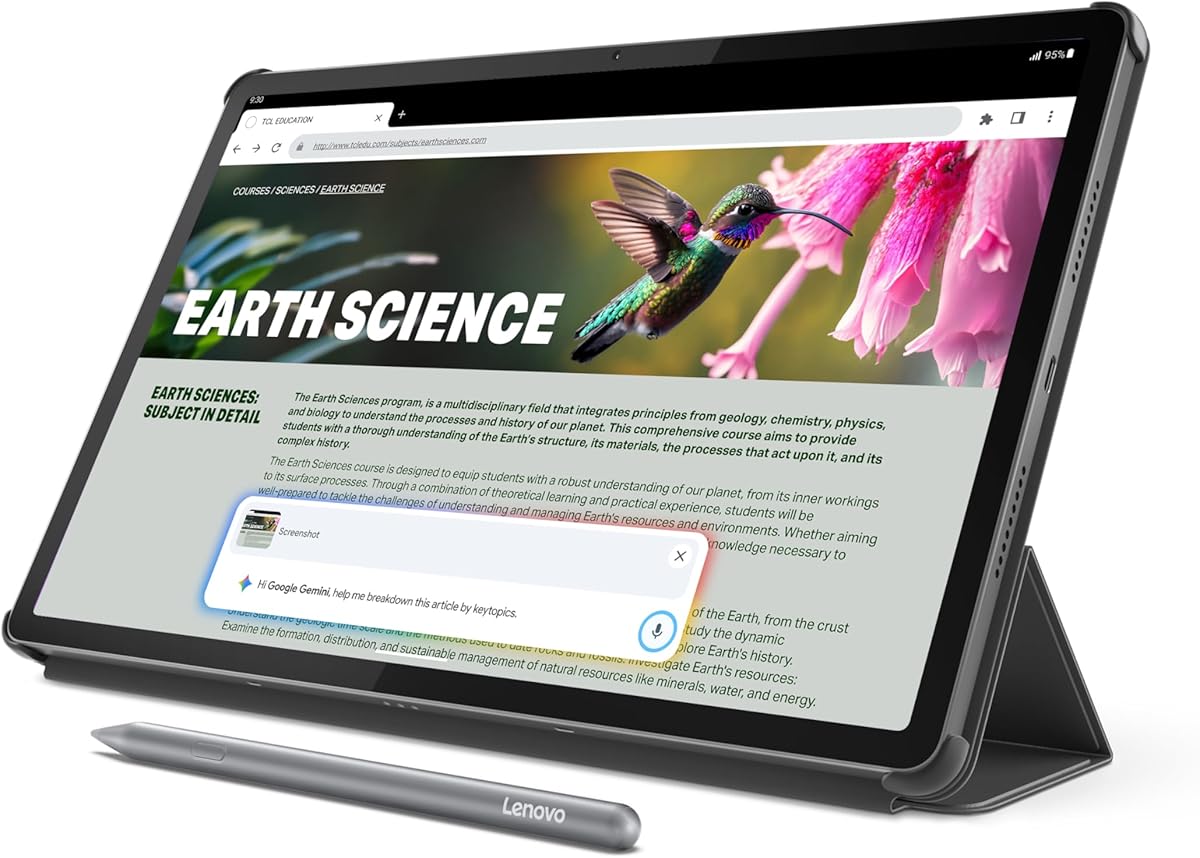
The Lenovo Idea Tab Pro is a 12.7-inch 3K Android tablet with an included Tab Pen Plus and folio case. Its 4.6 rating is among the strongest in this roundup, while the MediaTek Dimensity 8300, 8GB of memory, and 128GB of storage give it useful performance for study and mobile productivity. It can function as a CAD companion for viewing files, marking up plans, and light design work.
We may earn a commission when you buy through this link, at no additional cost to you.
The 3K LCD provides a generous, detailed workspace for documents, reference images, and technical review. Google Gemini, Circle to Search, and reading modes add value beyond drawing, while quad JBL Dolby Atmos speakers make it a capable media and presentation device. Its stated 90fps performance and 360Hz touch sampling rate are especially relevant to smooth onscreen interaction.
The limitation is its general-purpose Android foundation. The supplied information does not identify specialized CAD software support, pressure sensitivity specifications, or dedicated graphics-tablet features. A CAD workflow that depends on a desktop operating system, native engineering applications, specialized plug-ins, or complex 3D rendering may not be fully covered. The included pen is useful for markup, yet its technical drawing performance is not detailed.
Choose the Idea Tab Pro for a large-screen Android tablet that can accompany a desktop CAD setup, support field review, and provide strong everyday productivity. It is a sensible choice for students and architects who want a flexible reference device, but desktop CAD specialists should verify their exact application and file requirements first.
A 3K panel across 12.7 inches provides a useful balance of canvas area and fine detail. It suits plan viewing, reference-image inspection, and document annotation beside a more powerful workstation.
The included pen, folio, Gemini features, and reading modes turn the device into a broader study and review platform. That versatility makes it more useful than a purpose-built drawing tablet alone.
We may earn a commission when you buy through this link, at no additional cost to you.
The HUION H420X is a compact, affordable graphics tablet suited to students, travel, and CAD drafting on a limited desk. It has a 4.4 rating, 8192 levels of pressure sensitivity, and a battery-free stylus. Although it is not a full CAD tablet, it provides an unusually capable pen surface for learning, sketching, technical markup, and light design work.
We may earn a commission when you buy through this link, at no additional cost to you.
The 4.17-by-2.6-inch active area fits within a small footprint, and the whole tablet weighs 167 grams and measures just 7mm thick. Its 300 PPS report rate is intended to produce quicker, smoother lines, while two pen buttons can be customized for actions such as right-clicking or erasing. Plug-and-play operation reduces setup friction for everyday annotation.
The compact canvas is the most significant compromise. Detailed floor plans, mechanical assemblies, and multi-view technical drawings can require more room, and the absence of a screen means the user must look at a separate monitor while drawing. It supports Windows, Mac, and Android but not iOS, so operating-system choice must be checked before purchasing.
The H420X is the best budget recommendation for users who need a dependable way to add pen input to an existing computer. It is especially useful for students learning CAD, engineers who mainly need markup, and users with limited workspace. Experienced designers needing large surfaces should consider a medium or large tablet instead.
Its slim body and small active area make the H420X easy to deploy on a crowded desk or in a travel bag. The tablet can serve as a dedicated pen cursor and annotation surface.
An 8192-level stylus offers more tonal resolution than many entry-level alternatives. The 300 PPS rate and customizable buttons support smoother, more efficient pen operation.
We may earn a commission when you buy through this link, at no additional cost to you.
The Lenovo Idea Tab Pro Gen 2 is a large 13-inch tablet designed around study, note capture, review, and AI-assisted organization. It carries a 4.3 rating and pairs a 3.5K LTPS display with 800 nits of brightness. For CAD Design, it is best treated as a high-resolution review and markup device that can complement a desktop workstation.
We may earn a commission when you buy through this link, at no additional cost to you.
The Snapdragon 8s Gen 4 platform and integrated NPU are intended to accelerate AI features, multitasking, and note editing. Smart Capture can pull visuals into Lenovo Notepad, Sketch to Image can clean up hand-drawn ideas, and AI Notes can summarize or rewrite sections. Those tools are especially relevant to design reviews, client feedback capture, and early-stage ideation.
As with the first-generation Idea Tab Pro, the supplied information does not specify pressure levels, pen latency, compatibility with desktop CAD applications, or support for specialized engineering software. Its 144Hz refresh rate and 3.5K resolution improve visual smoothness and clarity, but those specifications do not by themselves make it a dedicated graphics tablet. Users should confirm that their CAD ecosystem supports the tablet's operating system and workflow.
The Gen 2 model is best for professionals who want a bright, large, feature-rich device for plan review, PDF markup, research, and presentations. It also works as a mobile companion to a more powerful CAD station. It is less compelling as the sole drafting system for a technical specialist than a dedicated pen display with documented CAD compatibility.
The 3.5K panel and 800-nit brightness make details easier to inspect in varied lighting. A large screen is valuable for comparing drawings, reading specifications, and presenting design decisions.
Smart Capture, image extraction, and AI-assisted note organization help turn meeting observations into structured follow-up. These features support collaborative CAD processes beyond technical drawing alone.
We may earn a commission when you buy through this link, at no additional cost to you.
The Samsung Galaxy Tab S10+ is a premium 12.4-inch Android tablet with a 4.7 rating, 256GB of storage, and an included S Pen. Its Dynamic AMOLED 2X display and Galaxy AI tools make it a strong option for visual design review, presentation, sketching, and technical markup when a desktop workstation is not immediately available.
We may earn a commission when you buy through this link, at no additional cost to you.
Sketch to Image can transform basic sketches into developed visuals, while Note Assist organizes and summarizes recorded lectures or meetings. Circle to Search provides a quick way to identify on-screen content. These features are useful in an iterative CAD process, where a meeting note, visual reference, or client requirement may need to become the basis for a design change.
The product is not described as a specialized graphics tablet, and no CAD-specific pressure sensitivity, active-area, or desktop-software details are supplied. Android app availability can differ from Windows or macOS equivalents, while complex 3D files and engineering plug-ins may require a different environment. The 256GB storage helps with local assets but does not resolve application or performance requirements by itself.
The Galaxy Tab S10+ suits design managers, students, and mobile professionals who want a premium portable review and presentation device. It is particularly attractive for users already invested in the Galaxy ecosystem and S Pen workflow. For production CAD modeling, it should complement rather than automatically replace a desktop or a CAD-optimized pen tablet.
The AMOLED display provides a vivid surface for reviewing renderings, plans, and presentation imagery. It is particularly useful when color and contrast form an important part of the presentation.
Sketch to Image and Note Assist support rapid visual and textual ideation. These tools can help teams move from rough concepts toward more organized review material before formal CAD work.
We may earn a commission when you buy through this link, at no additional cost to you.
The Samsung Galaxy Tab S10 FE+ is a 13.1-inch Wi-Fi Android tablet with a 4.7 rating, 128GB of storage, and an S Pen. It is well suited to drawing, handwritten calculations, plan markup, and design review. Its large screen makes it a practical mobile companion for users who want more working area than a conventional phone or compact digital notebook.
We may earn a commission when you buy through this link, at no additional cost to you.
Handwriting Assist can straighten, align, and adjust the spacing of handwritten notes, while Math Solver can convert handwritten equations into text. Circle to Search adds another way to retrieve information from the display. The S Pen is described as responsive and paper-like, making it useful for quick diagrams, dimension notes, and early-stage design communication.
Water resistance adds confidence for workshops, studios, classrooms, and field environments, while Super Fast Charging helps reduce downtime. However, the supplied details do not establish professional CAD application support, pressure levels, or a dedicated active-area specification. The base storage is also lower than the Galaxy Tab S10+ model, and expandable storage options should be considered for large project archives.
Choose the FE+ when a durable, large-screen Android tablet with an included pen is the priority. It is well matched to students, site reviewers, and designers carrying a tablet between presentations and meetings. Users whose daily work depends on native engineering applications should verify software support and file requirements before making it their primary CAD device.
Handwriting Assist and Math Solver extend the S Pen beyond freehand annotation. The result is a more useful workflow for dimensional notes, equations, and structured meeting records.
Water resistance makes the tablet more reassuring for busy creative environments. Its large display and fast charging also support extended work away from a fixed desk.
We may earn a commission when you buy through this link, at no additional cost to you.
The Wacom Intuos Pro Large is a professional offscreen tablet designed for users who want a generous drawing area and more configurable controls. It has a 4.3 rating, Pro Pen 3 technology, 8192 pressure levels, tilt support, and lag-free tracking. The 16:9 format and large active area are well suited to CAD drafting, technical illustration, and architecture workflows.
We may earn a commission when you buy through this link, at no additional cost to you.
Ten customizable ExpressKeys and two mechanical dials place frequently used commands within reach. The pen can be configured with slim, straight, or flared grips, balanced to the user's preference, and assigned with a chosen button layout. This level of control is valuable in CAD applications where zoom, pan, layer selection, orthographic commands, or view manipulation are used repeatedly.
As an offscreen tablet, it displays the CAD workspace on a separate monitor. The body is large, although only 4mm at its thinnest, and the magnesium construction is designed for durability. Bluetooth can connect to multiple computers for simple switching, while USB provides a wired alternative. It does not include a display or replace a workstation for heavy 3D computation.
The Intuos Pro Large is best for professionals who regularly sketch, trace, mark up, and manipulate CAD views on a large surface. It is a strong choice for architects, industrial designers, and engineers who want shortcut access without a pen display. Students can benefit from its controls, but the larger body and professional feature set may be more than a basic course requires.
The large 16:9 active area offers more space for plans, elevations, and mechanical details. It is a natural match for wide displays and multi-monitor desk arrangements.
ExpressKeys and dual dials reduce repetitive mouse movement and make frequently used actions more accessible. Customizable controls can be adapted to the commands used in a particular CAD program.
We may earn a commission when you buy through this link, at no additional cost to you.
The right tablet for CAD Design depends on software, display needs, drawing habits, and mobility. Evaluate pen precision, workflow compatibility, and screen size before choosing a device based on general specifications alone.
An offscreen tablet places your hand on a pen surface while the CAD model appears on a separate monitor. This setup often supports larger displays, more stable ergonomics, and dedicated shortcut controls, making it attractive for extended architectural and engineering sessions. A pen display places the drawing directly under the stylus, which can make line placement, shading, and presentation work feel more immediate. Standalone tablets add another distinction because they can run their own applications without a host computer, although the supplied products in that category are primarily oriented toward drawing and general productivity rather than professional desktop CAD.
Pen support does not automatically mean full CAD compatibility. Check the operating system, input driver, pressure and tilt behavior, plug-in needs, file compatibility, and any requirements for a full desktop operating system. The H420X supports Windows, Mac, and Android but excludes iOS. The Kamvas 13 Gen 3 supports Windows, Mac, Android devices meeting specific connection standards, and Linux, yet its compatibility with a particular CAD package still depends on the software itself. The general-purpose Lenovo and Samsung tablets should be considered companions unless their app ecosystems include every tool your project requires.
A larger active area lets you draw broader floor plans, mechanical assemblies, or site plans without constantly zooming. The Wacom Intuos Pro Large is particularly oriented toward wide work, while the H420X prioritizes portability with a much smaller 4.17-by-2.6-inch area. Pen displays provide a screen-size working area, but the full display is not necessarily available for drawing because interface elements consume space. For onscreen work, consider both the physical dimensions and the resolution that can be read comfortably at arm's length.
Pressure sensitivity allows a pen to vary line weight and shading intensity. The HUION Kamvas 13 Gen 3 and Wacom Intuos Pro Large provide 16,384 and 8,192 pressure levels respectively, while the H420X and Wacom Intuos Medium also use 8,192 levels. Higher numerical resolution can create smoother transitions, but real performance also depends on the software, driver, nib, and user technique. Tilt support is especially useful for broad shading, simulated marker strokes, and architectural visualization because the angle of the pen can influence the rendered mark.
CAD work often mixes technical line work with material colors, presentation graphics, and client-ready images. The Kamvas 13 Gen 3 stands out with stated 99% sRGB coverage, 90% Adobe RGB coverage, factory calibration, and a Delta E below 1.5. The Samsung models offer AMOLED screens, while the standalone PicassoTab and RubensTab devices emphasize larger canvases and general display quality. An anti-glare surface can help in bright rooms, and a laminated construction can reduce visual separation between the pen tip and the displayed line.
CAD software often combines freehand input with commands that are much faster through dedicated controls. The Wacom Intuos Pro Large offers ten customizable ExpressKeys and two mechanical dials. The Kamvas 13 Gen 3 includes two dials and five silent press keys that can adjust functions such as zoom, opacity, flow, and frames. On a touchscreen tablet, onscreen menus and a keyboard may be more important than physical tablet buttons. The best control scheme is the one that reduces repetitive navigation without conflicting with the software's shortcuts.
A CAD tablet may travel between a studio, classroom, client site, and home office. The Wacom Intuos Medium and H420X are compact peripherals, the Kamvas 13 Gen 3 weighs 865g, and standalone devices need to account for both screen size and battery capacity. The RubensTab T11 Pro states up to five hours of continuous use from its 5800mAh battery. The Lenovo Idea Tab Pro states 11 hours of unplugged video streaming and includes fast charging. For extended mobile drafting, verify real battery needs because drawing, screen brightness, wireless links, and compute-heavy applications can change runtime.
A standalone tablet can start drawing without a separate computer, making it useful for travel, teaching, and field notes. Yet the PicassoTab X14, RubensTab T11 Pro, Lenovo Idea Tab Pro models, and Samsung Galaxy tablets are not described as specialized CAD workstations. Their drawing and productivity features are useful, but professional modeling may still demand desktop-class applications, advanced file handling, specialized peripherals, or more processing power. Treat these devices as portable companions, presentation screens, field-review tools, or independent concept devices unless your exact software requirements are demonstrably met.
Begin by setting up the tablet in a neutral, well-lit workspace and connect it using the recommended cable or wireless pairing method. Install the current driver and pen configuration software, calibrate the active area if the model supports it, and set pen pressure, tilt, smoothing, and shortcut preferences to match your CAD application. Use a modest starting configuration and avoid extreme smoothing or pressure curves, which can make fine line placement less predictable.
Practice alignment on a simple grid before beginning a formal project. Draw straight lines, circles, arcs, and repeated dimensions, then compare the results with the onscreen cursor. For pen displays, adjust the screen angle so the surface feels natural and the image is free from excessive distortion. For offscreen tablets, position the active area so the hand does not obscure critical coordinates, and use keyboard or mouse shortcuts for operations that are not improved by pen input.
Clean the device with a soft, lint-free cloth and follow the manufacturer's guidance for screen cleaners and pen nibs. Avoid abrasive pads, excessive pressure, and leaving the tablet or pen in direct heat or humidity. Store cables loosely, protect the pen from drops, and keep the tablet away from dust and liquid unless its stated durability applies. Periodic driver and firmware updates can improve stability, but major software changes should be tested on a small file before an active project depends on them.
The best tablet for CAD Design depends on whether you need an offscreen tablet, a direct pen display, or a standalone device. The Wacom Intuos Medium is a strong general-purpose choice, the HUION Kamvas 13 Gen 3 offers premium onscreen precision, and the HUION H420X is a compact budget option. Professional users should prioritize CAD software compatibility, pressure response, and shortcut access above general processing power.
A dedicated pen tablet usually offers more precise input, better pressure control, and more physical shortcuts for extended CAD work. A touchscreen can be more convenient for reviewing drawings, navigating apps, and performing occasional annotations. Many designers benefit from using both, with a pen tablet for drafting and a larger display for viewing the complete model.
Only if you need to work away from a computer or your supported CAD applications are available on a mobile operating system. The standalone products in this guide are better established for drawing, note-taking, presentations, and concept work. They may not provide access to desktop CAD plugins, full file systems, specialized rendering tools, or the compute capacity required for complex models.
Most precision-oriented tablets in this guide provide 8,192 pressure levels, while the Kamvas 13 Gen 3 offers 16,384. Higher resolution can improve subtle transitions, but CAD line work also depends on tracking stability, nib quality, driver behavior, and software calibration. A stable 8,192-level pen is generally more useful than an unstable device with a higher headline specification.
Compatibility depends on the operating system and the specific tablet driver. The H420X supports Windows, Mac, and Android and is listed with major graphics applications, while the Kamvas 13 Gen 3 supports several desktop and mobile systems. The general-purpose Android tablets may work with mobile drafting apps but should not be assumed to support every AutoCAD, Revit, Fusion 360, or other desktop workflow.
A larger active area usually helps with floor plans, elevations, mechanical assemblies, and other detailed technical drawings. It lets you work at a more natural scale and reduces frequent zooming. The tradeoff is a larger footprint, potentially more wrist movement, and greater transport demands, so the ideal size depends on the desk, display arrangement, and portability needs of the user.
A pen display can be advantageous when you need to draw, annotate, and present on the same surface. The Kamvas 13 Gen 3 offers the strongest stated color calibration in this group, including 99% sRGB coverage and a factory calibration certificate. High-resolution AMOLED screens in the Samsung models also excel at visual review, though they are general-purpose tablets rather than dedicated CAD pen displays.
Keep the active surface clean, use a suitable replacement nib, and avoid pressing hard enough to deform the pen tip. Update the driver, recalibrate when the application offers that option, and confirm the drawing area matches the display resolution. If the cursor drifts, check for interference, verify the pen pairing, and reconfigure pressure or tilt settings before assuming the hardware is faulty.
The Wacom Intuos Medium is the most balanced overall recommendation because it combines a trusted pen system, wireless flexibility, and broad creative software support. The HUION H420X stands out for budget-conscious users who need a compact input surface, while the HUION Kamvas 13 Gen 3 is the strongest premium choice for professionals who want direct onscreen input, fine pressure control, calibrated color, and configurable dials.
Prioritize the workflow you actually need. Choose a dedicated graphics tablet for desktop CAD and long drafting sessions, a pen display when direct line placement and presentation matter, and a general-purpose Android tablet only for mobile review, annotation, or concepts. Active area, software support, and the availability of shortcuts can affect daily productivity more than a headline display resolution or processor specification.
Before purchasing, confirm the operating system, native CAD application, driver, plug-ins, file format, and mobility requirements. Product prices, bundles, and availability change, so review the current listing and included accessories at the time of purchase. With those checks in place, you can select a tablet that supports accurate drafting today while leaving room for your CAD workflow to evolve.