
HP DeskJet 2955
3.7Editor score
Simple icon LCD controls
60-sheet paper tray
Wireless and mobile printing
Compact home-friendly design
Choosing an easy to use printer for seniors requires more than comparing basic specifications. A useful machine should offer understandable controls, straightforward wireless setup, readable screens, simple ink or ink-tank maintenance, and dependable results for everyday documents. The right printer can make communication, appointments, forms, photos, and personal projects much easier.
The ten printers in this guide were compared using their supplied features, including setup methods, display design, print and scan functions, automatic duplexing, document feeders, connectivity, and paper capacity. The list covers compact models for light use, all-in-ones for households, and more capable machines for people who print larger volumes or handle multi-page documents.
Each review identifies the features that make a printer approachable, along with limitations that may matter to particular users. The Canon PIXMA TR7120 stands out for its intuitive OLED display and document feeder, while several other models emphasize simple cartridges, familiar mobile apps, or refillable ink systems. Prices and availability can change, so check current listings before buying.
3.7Editor score

4.3Editor score

4.0Editor score
As an Amazon Associate we earn from qualifying purchases.
This side-by-side overview highlights the most important differences in controls, connectivity, paper handling, ink management, and document features across all ten recommended printers.






The HP DeskJet 2955 is a basic wireless all-in-one designed for straightforward home printing, copying, and scanning. Its 3.7 rating is the lowest in this group, but the model’s appeal comes from its simplicity rather than extensive productivity features. The icon LCD provides a familiar way to choose common functions without navigating a complex touchscreen.
We may earn a commission when you buy through this link, at no additional cost to you.
Its strongest benefits are a compact body, a 60-sheet input tray, and support for wireless and mobile printing through the HP app. The supplied feature list also highlights HP AI tools that can reformat web pages and emails to avoid awkward layouts or wasted pages. That can be particularly useful for older users who often print information copied from online sources.
The compromises are important. Automatic duplex printing is not included, so multi-sided documents require manual paper changes. The 60-sheet tray is suitable for occasional letters, recipes, forms, and short projects, but it may need frequent refilling. This model may also be less suitable for someone who regularly prints thick photo paper or high-volume documents.
Despite those limits, the HP DeskJet 2955 is a sensible budget-oriented choice for a senior who mainly prints short documents and wants a small machine with familiar physical controls. It is most appropriate when automatic two-sided printing, a large paper tray, and an automatic document feeder are not priorities.
The icon LCD keeps routine tasks clear and direct. Combined with the HP app and wireless capability, it offers a manageable way to print letters, lists, financial records, and recipes without requiring frequent computer intervention.
HP AI can adjust web pages and emails before printing, helping reduce clipped text and unnecessary pages. This makes the model particularly useful for printing information gathered from websites.
We may earn a commission when you buy through this link, at no additional cost to you.
The Canon PIXMA TS6520 combines a compact footprint with a clear 1.42-inch monochrome OLED display. Its 4.2 rating reflects a balanced feature set for home users and hybrid workers. The screen can show ink status and printer information at a glance, giving users more feedback than a minimal indicator light.
We may earn a commission when you buy through this link, at no additional cost to you.
Automatic two-sided printing is a major convenience for seniors who print forms, articles, or lengthy instructions. It reduces paper use and eliminates the need to manually turn and reinsert every sheet. Dual-band Wi-Fi, smartphone setup, Apple AirPrint, Mopria Print Service, and Canon PRINT support also make the printer flexible for different devices.
Its two-cartridge hybrid ink system uses separate color and black ink, which can make black text economical while producing sharp documents and vivid photos. On the other hand, there is no automatic document feeder, so multi-page scanning and copying must be handled on the flatbed. The absence of fax may also matter for users with certain legacy needs.
This is a strong choice for someone who values a readable display, wireless convenience, and automatic duplexing without needing a large office printer. It is particularly appropriate when documents are occasionally long but multipage copying is not routine.
The OLED panel provides at-a-glance information such as ink levels and printer status. Its compact size helps preserve desk space while still giving users more control than a printer without a screen.
Automatic duplex printing is especially helpful for recipes, medical forms, newsletters, and articles. It reduces both paper consumption and the need to supervise a second manual printing pass.
We may earn a commission when you buy through this link, at no additional cost to you.
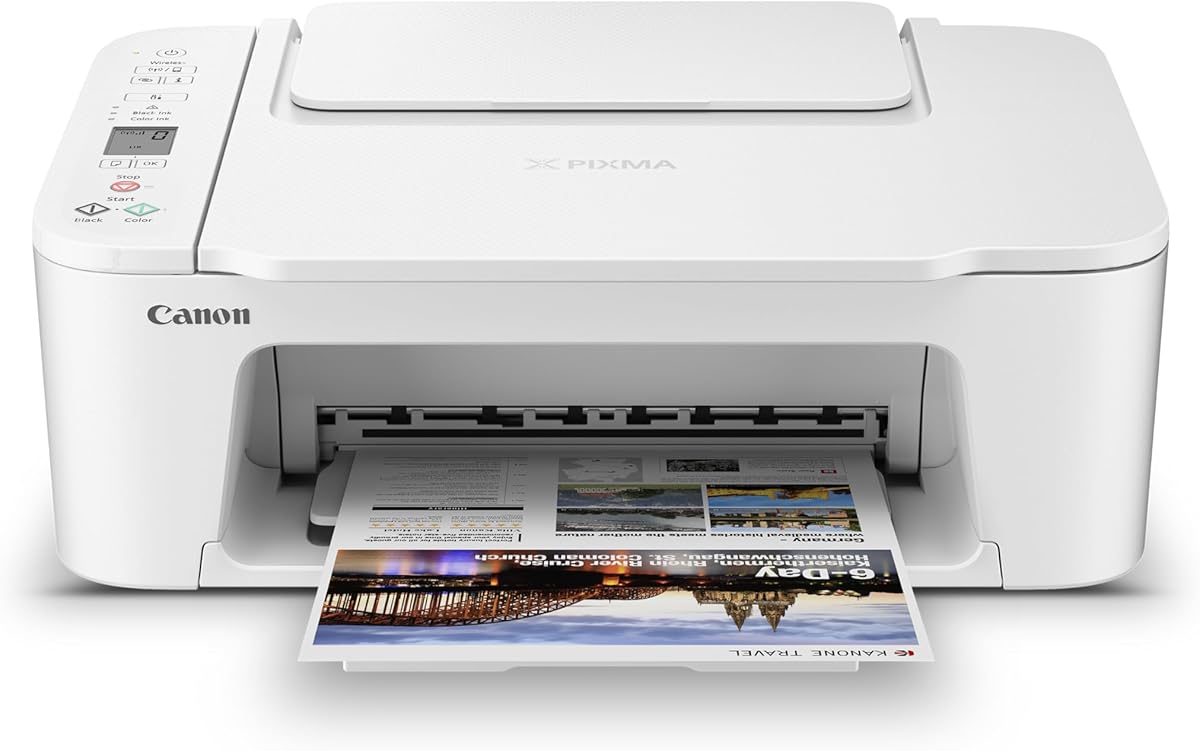
The Canon PIXMA TS4320 is a wireless color all-in-one aimed at practical home use, with a 4.0 rating. It covers the essential printing, copying, and scanning functions without adding a large display or automatic document feeder. The result is a straightforward option for users who mainly need short documents and occasional copies.
We may earn a commission when you buy through this link, at no additional cost to you.
The printer supports automatic two-sided printing, dual-band Wi-Fi, Canon PRINT, Apple AirPrint, and Mopria Print Service. Its two-cartridge hybrid ink system is designed to provide sharp text and vivid color for documents and photographs. Setup can be completed with a smartphone or computer, which helps reduce the learning curve for new owners.
Because the supplied information does not identify a built-in screen, users may need to handle basic settings through a computer or mobile device. It also lacks an automatic document feeder, making it less convenient for multi-page scanning or copying. Those limitations may not matter for occasional use, but they are notable for a busy household.
The TS4320 is best for a senior seeking a small, affordable-feeling, wireless color printer without premium productivity extras. It offers an effective balance of useful functions, reliable connectivity, and environmental certifications for users who value simplicity and straightforward printing.
Print, copy, and scan cover most household needs. Keeping the feature set focused can make the printer less intimidating than a model loaded with advanced office controls.
Support for the Canon PRINT app, Apple AirPrint, and Mopria gives users several familiar ways to send documents from compatible phones, tablets, and computers.
We may earn a commission when you buy through this link, at no additional cost to you.
The Brother Work Smart 1360 is a compact wireless all-in-one that combines printing, scanning, copying, and cloud-app access. Its 3.8 rating places it in the middle of the group, while its 1.8-inch color display and straightforward onscreen navigation make it approachable for users who want more guidance than a button-only panel.
We may earn a commission when you buy through this link, at no additional cost to you.
The supplied features highlight connections to Google Drive, Dropbox, Box, OneDrive, and other cloud services. The Brother Mobile Connect app provides menu navigation and device management from a mobile device, while Page Gauge helps monitor ink usage. A 20-sheet automatic document feeder, automatic duplex printing, and a 150-sheet paper tray further improve everyday productivity.
The document feeder is smaller than those in several competing models, so long documents require more than one loading session. Print speeds reach up to 16 pages per minute in black and 9 ppm in color, which is suitable for regular home-office use but not intended for heavy commercial workloads. No fax function is listed.
This printer suits a senior who stores files in cloud services or enjoys scanning documents directly to shared locations. It is especially attractive for home-office users who need duplexing, a usable display, and moderate paper capacity in a relatively compact package.
Direct access to popular cloud apps can simplify retrieving and printing a document. The printer can also scan to cloud destinations, reducing the need to email files or move them through a computer first.
Page Gauge helps users keep track of ink use. This can prevent the frustration of beginning a job only to discover that the cartridge needs replacing.
We may earn a commission when you buy through this link, at no additional cost to you.
The HP OfficeJet Pro 8125 is a feature-rich home-office printer built around a 2.7-inch color touchscreen. Its phone-like interface is one of the most approachable control options in this roundup, and the model carries a 3.9 rating. It is well suited to a senior who wants visual navigation and clear status information.
We may earn a commission when you buy through this link, at no additional cost to you.
A 225-sheet input tray, automatic duplex printing, and an automatic document feeder make it capable of handling substantial work. Print speeds reach up to 20 ppm in black and 10 ppm in color. The HP app supports printing, scanning, copying, and faxing from a smartphone, while dual-band Wi-Fi is designed to maintain stable connections.
The larger body and paper capacity may take up more space than a compact model requires. HP AI can reformat web pages and emails before printing, which is useful for cleaner output. However, the printer works only with original HP chips or circuitry and blocks cartridges using non-HP chips, a limitation worth understanding before purchase.
Despite its greater size and cartridge restrictions, this is a strong choice for a senior with a home office or regular printing routine. The large touchscreen, high paper capacity, automatic feeder, and duplexing form a user-friendly package for forms, reports, presentations, and multi-page documents.
The 2.7-inch color screen uses a phone-like layout that can be more intuitive than small monochrome panels. Large visible icons and immediate status feedback may also reduce uncertainty when changing settings.
Automatic duplexing and the document feeder reduce manual handling. The 225-sheet tray means fewer refills during projects such as reports, lesson plans, or household record keeping.
We may earn a commission when you buy through this link, at no additional cost to you.
The HP Envy 6155 is a home-focused all-in-one with a 4.2 rating and a 2.4-inch color touchscreen. It is designed for everyday color documents, homework, and borderless photos. The touchscreen provides an easy way to select copying, scanning, printing, and setup functions without relying entirely on a phone or computer.
We may earn a commission when you buy through this link, at no additional cost to you.
Automatic duplex printing, a 100-sheet input tray, and dual-band Wi-Fi make the machine convenient for regular household use. HP’s P3 technology is included to produce color output intended to resemble what users see on screen. The HP app supports printing, scanning, copying, and faxing, and HP AI can clean up the formatting of online pages and emails.
There is no automatic document feeder, so scanning several pages requires the flatbed and individual page placement. The 100-sheet tray is adequate for routine use but may need attention during larger jobs. Like the OfficeJet Pro 8125, it is designed to work only with original HP chips or circuitry, which may limit cartridge choice.
The Envy 6155 is a good match for a senior who wants a polished, screen-led printer for color documents and photographs without a document feeder. It balances convenience, output quality, and duplexing in a home-oriented design.
Borderless photo support and true-to-screen color technology make this printer appealing for greeting cards, family photographs, school projects, and decorative prints.
The 2.4-inch display makes common tasks easier to initiate. Users can also manage the printer through the HP app when working from a compatible mobile device.
We may earn a commission when you buy through this link, at no additional cost to you.
The Canon PIXMA TR4720 is distinctive because it includes a built-in fax alongside printing, copying, and scanning. It holds a 3.9 rating and targets home users who may appreciate traditional fax capabilities without needing a separate machine. Automatic duplexing and an automatic document feeder further improve its everyday practicality.
We may earn a commission when you buy through this link, at no additional cost to you.
Its 100-sheet capacity is adequate for a home office or regular household printing. The supplied information emphasizes easy ink cartridge installation and replacement, an important factor for users who may find cartridge setup intimidating. Mobile printing support and Alexa notifications can also provide convenient ink reminders.
The listed black document speed is approximately 8.8 images per minute, with color output around 4.4 images per minute. That is adequate for occasional documents but slow for large jobs. The supplied feature list does not identify a built-in screen, so some tasks may require the Canon PRINT app or a computer.
The TR4720 is most relevant for a senior who still sends or receives faxes and wants a single home machine. For everyone else, its primary advantage over simpler models is the combination of fax, feeder, and automatic duplexing in one unit.
Built-in fax is useful for medical offices, service providers, or family members that continue to rely on traditional fax communication. Combining it with wireless printing creates a versatile home office device.
The emphasis on easy installation and replacement reduces a common source of frustration. Clearly labeled cartridges and a straightforward replacement process can make maintenance less intimidating.
We may earn a commission when you buy through this link, at no additional cost to you.
The Epson EcoTank ET-2800 approaches ink management differently from conventional cartridge printers. Its refillable reservoirs can print up to 4,500 pages in black or 7,500 pages in color according to the supplied information, and the box includes up to two years of ink. It has a 4.0 rating and is ideal for users who want fewer replacement interruptions.
We may earn a commission when you buy through this link, at no additional cost to you.
The cartridge-free system removes the need to buy and install numerous small cartridges. Epson states that one ink bottle set is equivalent to approximately 90 individual cartridges. As a wireless color all-in-one, it supports printing, scanning, and copying, while Micro Piezo Heat-Free Technology is used to produce vivid, detailed documents and photos.
Refilling requires more care than replacing a sealed cartridge. Spills would be inconvenient, so Epson recommends genuine ink, noting that non-genuine ink could cause damage not covered by the limited warranty. The supplied information does not identify a screen or automatic document feeder, so buyers seeking those conveniences should look elsewhere.
For a senior who prints regularly and wants to avoid the routine expense and inconvenience of cartridges, the ET-2800 can be an excellent long-term choice. It is particularly suitable for newsletters, club documents, activity schedules, and other sustained household printing.
Large reservoirs and a substantial in-box ink supply mean fewer emergency cartridge changes. That convenience can be particularly valuable for users who do not want to monitor small ink levels closely.
High page-yield potential makes the EcoTank suitable for frequent color and black documents. The ten-page-per-minute black speed also provides reasonable momentum for larger jobs.
We may earn a commission when you buy through this link, at no additional cost to you.
The Canon PIXMA TS3720 is a basic wireless all-in-one designed for uncomplicated home printing. It has a 4.0 rating and includes printing, copying, scanning, a 1.5-inch segment LCD, and easy-to-replace ink cartridges. The streamlined setup process is designed to get users printing within minutes.
We may earn a commission when you buy through this link, at no additional cost to you.
Dual-band Wi-Fi can be configured without a computer, and printing is supported through the Canon PRINT app, Apple AirPrint, Mopria Print Service, and compatible mobile devices. It also works with Chromebook. Media versatility includes envelopes, photos, high-resolution paper, banners, five-inch square photos, and borderless output up to five by seven inches.
The principal limitation is single-sided printing only. There is also no automatic document feeder, so multi-page copying or scanning is less convenient. Users who mainly print occasional letters, forms, school assignments, and small photos will find that the straightforward design outweighs the missing productivity features.
The TS3720 is a good choice for a senior who values a simple screen, quick setup, and familiar cartridge maintenance. It is especially appropriate for a first printer or for a household with limited printing volume.
The segment LCD provides direct feedback without the complexity of a full touchscreen. It offers enough guidance for common operations while keeping the control layout uncomplicated.
Wireless setup can be completed directly through the printer. This reduces the number of steps for users who may be more comfortable with a phone than with computer configuration.
We may earn a commission when you buy through this link, at no additional cost to you.
The Canon PIXMA TR7120 earns the highest rating in this roundup at 4.3. It is a well-rounded wireless color all-in-one whose 1.42-inch monochrome OLED display provides clear information about ink levels, printer status, and settings. That combination of visibility and purposeful features makes it our Editor’s Choice for easy to use printers for seniors.
We may earn a commission when you buy through this link, at no additional cost to you.
Automatic duplex printing reduces paper waste and manual intervention, while the automatic document feeder handles multi-page scanning and copying more efficiently. The compact design preserves desk space, and dual-band Wi-Fi supports stable connections. Canon PRINT, Apple AirPrint, and Mopria Print Service provide familiar options for printing from a phone, tablet, or computer.
The two-cartridge hybrid ink system can produce sharp text and vivid color, but it does not offer the large refillable reservoir found in the EcoTank ET-2800. No fax function is listed, which may rule it out for users with legacy fax needs. The compact form may also offer less paper capacity than larger office-oriented models.
This printer is recommended for a senior who wants a clear screen, straightforward wireless operation, and convenient handling of multi-page documents without a bulky machine. It is a balanced home printer that should be easy to learn while remaining capable enough for everyday scanning, copying, and duplex printing.
The OLED display makes important printer information easy to check. Users can review ink status and adjust settings without relying on an unfamiliar mobile interface for every adjustment.
The automatic document feeder accepts multiple pages for scanning and copying, while automatic duplexing handles two-sided documents. Together, they reduce manual page handling during longer jobs.
We may earn a commission when you buy through this link, at no additional cost to you.
The best easy to use printer for seniors is not necessarily the model with the most features. Look for clear controls, dependable connectivity, manageable ink maintenance, and enough paper handling to support the household’s real routine.
Choose controls that are legible and logically organized. Large text, recognizable icons, and straightforward navigation matter more than decorative interfaces.
Prioritize dual-band Wi-Fi, a simple setup process, and an app that is comfortable to navigate on your own device.
Light users may prefer simple cartridges, while frequent printers may value fewer replacements. Read refill and compatibility guidance carefully before choosing.
Match scanning and copying functions to your routine. Add a feeder or fax only when it provides recurring value.
Automatic duplexing is especially useful for long articles, recipes, forms, and reports where paper savings and convenience matter.
Measure the intended space and estimate your monthly page use before choosing. A machine that fits comfortably is more likely to be used consistently.
Prioritize legible text and dependable color for everyday work. Check media sizes and borderless options when photos are a regular priority.
Estimate page volume before prioritizing speed. A slower printer can still be appropriate when documents are brief and high-volume output is rare.
Begin by unpacking the printer, removing any packing material, and placing it on a stable surface with room to access the tray and output area. Connect power, install the ink or toner, and load several sheets of paper. Before the first large job, print a short test page to verify alignment, color, and text clarity. Keeping the first test simple helps identify setup problems before important documents are affected.
For wireless use, follow the manufacturer’s setup process and connect the printer to the home network. Choose the network carefully, enter the password using the printer’s screen or supplied app, and print a wireless test page. Saving a favorite print preset for frequently used paper sizes and quality settings can reduce the number of choices required each day. Users should also know how to check estimated ink levels and replace or refill supplies before they run out.
Keep the scanner glass and document feeder path clean, use dry microfiber cloths on exterior surfaces, and avoid spraying cleaner directly onto the printer. Load paper within the tray’s recommended limits and use appropriate media for photographs or heavier stock. Periodically update the printer software through the manufacturer’s app or website, and keep the Wi-Fi password and network settings in an accessible place. If a job begins incorrectly, canceling it early and checking paper alignment is usually safer than repeatedly printing damaged pages.
The Canon PIXMA TR7120 is a strong all-around choice because its OLED display clearly shows ink levels and printer status. It also supports wireless setup, automatic duplex printing, and an automatic document feeder. The best option still depends on whether screen size, fax capability, or cartridge style matters more to the individual user.
A touchscreen can be easier for some people because icons and status messages are visible at a glance. It may be less convenient for users who prefer a limited set of physical controls or find small screens difficult to read. The HP DeskJet 2955 and Canon PIXMA TS3720 use simpler displays, while the HP Envy 6155 and OfficeJet Pro 8125 offer larger touchscreens.
A feeder is valuable if you regularly scan or copy documents containing several pages. It reduces the need to place each sheet on the scanner glass individually. For occasional single-page copies, a flatbed scanner is sufficient, and choosing without a feeder may keep the printer more compact.
Ink tank printers can require fewer replacements because the reservoirs hold a large amount of ink. Refilling them requires careful handling of ink bottles, and genuine manufacturer ink is strongly recommended. Cartridge printers are often more familiar and may be preferable for light users who print infrequently.
Automatic duplexing is convenient for articles, reports, forms, and other multipage documents because it saves paper and avoids manual page turning. If you mostly print one-page letters or short notes, a simpler single-sided model may be sufficient. Several choices in this guide include automatic duplexing.
All ten models support wireless printing, and the supplied information highlights services such as Apple AirPrint, Mopria Print Service, Canon PRINT, Brother Mobile Connect, and the HP app. The printer and mobile device must be connected to the same network, and the chosen service must be installed and compatible.
The Canon PIXMA TR4720 is the only model in this guide with a built-in fax function. It also includes an automatic document feeder, automatic duplex printing, wireless connectivity, and a 100-sheet capacity. Users who do not need fax can choose a model with a larger screen or different ink system instead.
Allow enough room for the paper tray to open, pages to emerge, and the document feeder or rear output to remain unobstructed. Compact models may suit a small table, while models with larger trays or feeders need more clearance. Measure the printer and the intended surface before purchasing, and keep power and Wi-Fi access convenient.
The Canon PIXMA TR7120 is the strongest overall choice for most readers in this category. Its clear OLED display, automatic duplexing, document feeder, and compact design provide a helpful balance of accessibility and capability. The HP DeskJet 2955 serves as a budget-oriented option for occasional documents, while the Epson EcoTank ET-2800 is the most compelling choice for frequent printers who want fewer cartridge replacements.
Prioritize the features that will affect daily comfort rather than the longest specification list. A readable screen, simple app, understandable ink system, and sufficient paper capacity matter more than small speed differences. Automatic duplexing and a document feeder are valuable if you routinely print long documents, while a built-in fax is worth considering only if your household still needs it.
Before buying, confirm that the printer supports your devices, preferred paper sizes, and connection habits. Check the current listing for the latest specifications, included accessories, warranty details, availability, and price. Features and configurations can vary, and current pricing should always be compared at the time of purchase.