
Anker Laptop Docking Station Dual Monitor
4.5Editor score
Dual 4K HDMI support
Up to 85W power delivery
Ethernet and card reader
Explore the best docking station for Dell laptop options, comparing display support, charging, connectivity, compatibility, and setup for every workspace.
A docking station can turn a compatible Dell laptop into a practical desktop workstation by adding displays, faster networking, wired peripherals, charging, and USB expansion through one connection. The right model depends heavily on your Dell series, USB-C capabilities, monitor arrangement, power requirements, and whether portability matters as much as desk performance.
This guide compares ten docking stations using their listed specifications, customer ratings, display capabilities, charging output, port selection, and stated compatibility. It covers official Dell docks, Anker models, and general-purpose USB-C hubs, while highlighting restrictions involving DisplayPort Alternate Mode, macOS, Linux, specific Latitude systems, and older ThinkPad generations.
Each review identifies the strongest reason to consider the product and the compromises buyers should understand. The top selections range from a feature-rich official Dell option to a value-focused dual-monitor hub and a premium charging dock, but current prices, stock, firmware, and Dell laptop compatibility can change over time.
4.5Editor score

4.5Editor score

4.3Editor score
The comparison below highlights charging capacity, display support, data performance, and important limitations across all ten docks, helping you narrow the field before checking fit for your particular Dell laptop.




The Dell Pro WD25 combines broad modern connectivity, up to 100W of power delivery, and native support for as many as four high-resolution displays. Its 4.5 customer rating reflects a generally favorable reception, while the official Dell positioning makes it especially appealing to users who want a straightforward, professional workstation connection.
We may earn a commission when you buy through this link, at no additional cost to you.
The strongest feature is display flexibility. Support for up to four high-resolution screens can suit a data-heavy office, trading setup, creative workstation, or command center. DisplayPort and HDMI outputs expand display options, while newer USB and network speeds are intended to keep connected peripherals responsive. The ambidextrous USB-C cable can also be routed left or right, making the dock easier to position around a desk.
The docking station also emphasizes commercial manageability and sustainability. It can drive up to 100W to new mainstream Dell AI PCs and non-Dell PCs, uses a robust USB-C connector, and includes an ambidextrous cable. Its standby power consumption is listed as up to 72 percent lower, with at least 65 percent postconsumer recycled materials and fully recycled or renewable packaging. Those details may matter more in an office than in a temporary home setup.
This is the strongest all-around recommendation for a compatible Dell laptop that needs a permanent desk setup and multiple displays. Confirm your laptop's USB-C video capabilities and monitor requirements before buying, because the most advanced display modes still depend on the computer's processor, graphics output, operating system, and connection standards. For a modern productivity dock that feels purpose-built for Dell users, the WD25 leads this list.
Native support for up to four high-resolution displays separates the WD25 from many compact hubs that handle only two screens. It is particularly attractive for users who regularly divide applications across several panels rather than simply adding a second monitor.
Up to 100W of power delivery can simplify a one-cable setup for compatible Dell systems. Routing the host cable left or right adds physical flexibility, especially when the dock sits behind a monitor or beside a laptop stand.
We may earn a commission when you buy through this link, at no additional cost to you.
The Anker 8-in-1 USB-C PD Media Hub is a compelling value for Dell users who want dual displays, charging, Ethernet, and basic USB expansion without paying for the largest desktop charging dock. It carries a 4.5 rating and provides eight useful functions through one upstream USB-C connection.
We may earn a commission when you buy through this link, at no additional cost to you.
Its two HDMI ports are the centerpiece. One display can stream or mirror at 4K60Hz, while two connected displays can run at 4K30Hz. The hub also includes a USB-C PD input, two USB-A data ports, Gigabit Ethernet, and a combined microSD/SD reader. That combination is especially useful for a compact office setup that still needs a wired network connection.
Power delivery reaches 85W, which is lower than the 100W offered by several premium docks but remains substantial for many compatible laptops. A 100W PD wall charger and USB-C-to-C cable are required for charging, and the product supports USB-C, USB4, and Thunderbolt connections. It works with Windows 10, Windows 11, ChromeOS, and laptops featuring DisplayPort Alternate Mode and Power Delivery, but it is not compatible with Linux.
For a budget-conscious buyer establishing a two-monitor office, this is an easy dock to recommend. Be aware that the second display operates at 4K30Hz, and verify that the intended Dell model supports the required video and charging protocols. It is best suited to productivity work, hybrid offices, and home setups where two screens and tidy peripheral management matter more than maximum charging capacity.
Two HDMI outputs, Gigabit Ethernet, two USB-A ports, and card-reader access cover many everyday desk needs. The result is a practical one-cable station for keyboards, mice, wired networking, storage, and dual-monitor work.
A single display can run at 4K60Hz, but a dual-display arrangement is limited to 4K30Hz. Buyers using color-sensitive or high-refresh monitors should check whether those refresh rates matter before choosing this dock.
We may earn a commission when you buy through this link, at no additional cost to you.
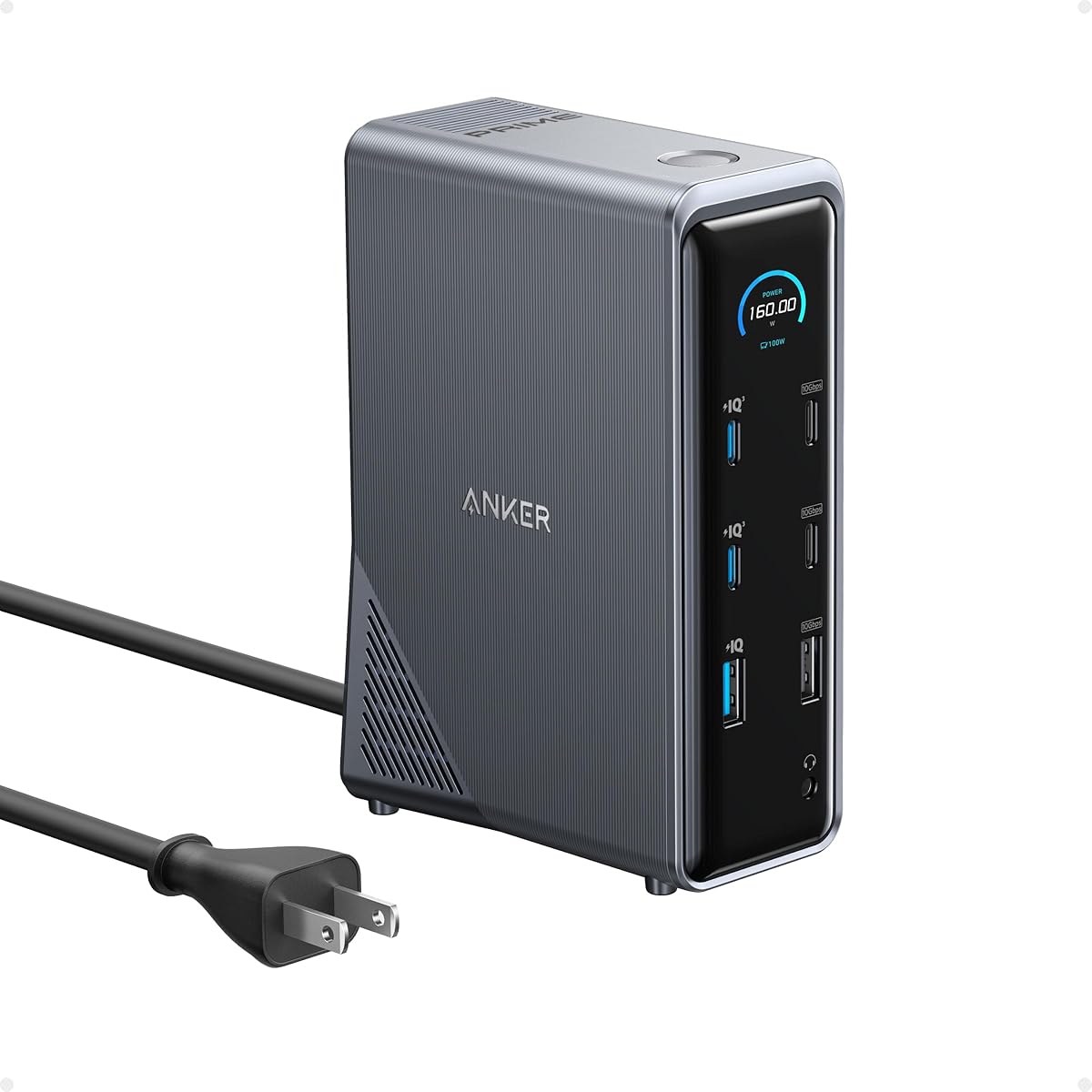
The Anker Prime 14-in-1 is designed for demanding desks that need more than simple display expansion. It delivers a total output of 160W across three USB-C charging ports and one USB-A port, while offering 11 data ports, dual display connections, audio options, and transfer speeds reaching 10Gbps.
We may earn a commission when you buy through this link, at no additional cost to you.
Its charging capability is the major differentiator. Three USB-C ports can provide up to 100W each, while the USB-A charging port supplies up to 12W, allowing up to four devices to charge simultaneously. The included 3.3-foot 100W USB-C cable supports both upstream connectivity and high-speed data transfer, reducing the chance of pairing the dock with an unsuitable cable.
Display support is less aggressive than some alternatives. Two displays can run at up to 2K60Hz when connected to a DP 1.4 laptop, while a DP 1.2 laptop supports 1080p60Hz. The dock does not support a 5120×1440 monitor. It supports USB-C, USB4, and Thunderbolt connections and is compatible with Windows 10, Windows 11, and ChromeOS, but Linux is excluded and macOS uses identical external monitor images.
This premium model makes the most sense for a power user who charges several devices, transfers large files, and needs broad peripheral support. It may be unnecessary for a simple two-screen office, but it offers the most capable charging system in this group. For a compatible Dell workstation, the Prime combines impressive flexibility with unusually strong desktop power delivery.
The 160W aggregate output can support a Dell laptop alongside several other devices. This is particularly valuable for desks where a phone, tablet, headset, or second computer regularly needs charging.
Ports capable of 10Gbps are well suited to external storage, card workflows, and frequent file transfers. The supplied upstream cable is rated for 100W and 10Gbps, helping preserve both charging and data performance.
We may earn a commission when you buy through this link, at no additional cost to you.
The HoDo 8-in-1 dock is built around unusual display flexibility, offering two HDMI ports, DisplayPort, and VGA. It can support dual high-resolution output or a triple-display arrangement, making it attractive for offices that still rely on VGA or need a mix of connector types.
We may earn a commission when you buy through this link, at no additional cost to you.
The listed configurations are detailed. Dual displays can use HDMI and DisplayPort, while three-display operation uses both HDMI connections and DisplayPort. With all four video outputs connected, the maximum listed resolution becomes 1080p60Hz for each. A single HDMI or DisplayPort output can reach 4K60Hz under the appropriate host and cable conditions.
Charging reaches 87W safe output from a USB-C input rated for up to 100W. A 65W-or-higher power adapter is recommended, but it is not included. Data connections consist of three USB 2.0 ports offering up to 480Mbps, which is sufficient for keyboards, mice, and basic accessories but modest for modern high-speed storage.
The main warning is compatibility. The listing specifically excludes some Dell Gaming systems, Dell Latitude 3440 and 3340 units, ThinkPad X1 Carbon Gen 7 and Gen 8, and certain other models whose USB-C ports lack video output. Check the exact Dell model and port capabilities before ordering. If compatible, this is a versatile budget-oriented dock with unusually broad video-output options.
Two HDMI outputs, DisplayPort, and VGA allow buyers to connect different generations of equipment. That flexibility can be valuable in shared offices or installations that cannot replace legacy projectors and monitors.
A full-featured USB-C port with DisplayPort Alternate Mode is required for display output. The listed exclusions make it especially important to confirm your exact Dell model instead of assuming every USB-C connector behaves identically.
We may earn a commission when you buy through this link, at no additional cost to you.
The Anker Nano 13-in-1 stands apart by combining a full desktop dock with a detachable 6-in-1 portable hub. It is a practical choice for Dell users who alternate between a fixed multi-monitor desk and a lighter travel kit, with the detachable component reducing the need for a second collection of adapters.
We may earn a commission when you buy through this link, at no additional cost to you.
The main dock provides two HDMI ports, DisplayPort, two USB-C data ports, three USB-A ports, Gigabit Ethernet, 3.5mm audio, SD and TF card slots, a USB-C upstream connection, and DC power input. Display arrangements include a single 4K60Hz screen, two 2K60Hz screens, or three 1080p60Hz screens. macOS supports mirrored output for multiple external displays.
Power delivery reaches 100W, and the package includes a 140W power adapter and a three-foot 10Gbps USB-C cable. One USB-C data port supports transfers up to 10Gbps, while the other operates at 5Gbps. The listed Dell compatibility explicitly includes XPS systems, and the dock is designed for most Windows laptops with USB-C.
This is the most travel-conscious choice in the guide, but that versatility introduces complexity. You must connect the upstream USB-C cable before the dock's ports activate, and buyers should decide whether they genuinely need both the desktop and detachable sections. For a Dell XPS user or a frequent traveler who wants one coordinated peripheral system, it is a distinctive and capable solution.
The detachable 6-in-1 hub provides a smaller set of connections for mobile work while remaining part of the same ecosystem. This can simplify packing without giving up the full dock's monitor and peripheral options at home.
Up to 100W laptop charging and 10Gbps transfers support demanding connected equipment. The included 140W adapter and 10Gbps cable are intended to provide stable performance when the dock is operating under a substantial workload.
We may earn a commission when you buy through this link, at no additional cost to you.
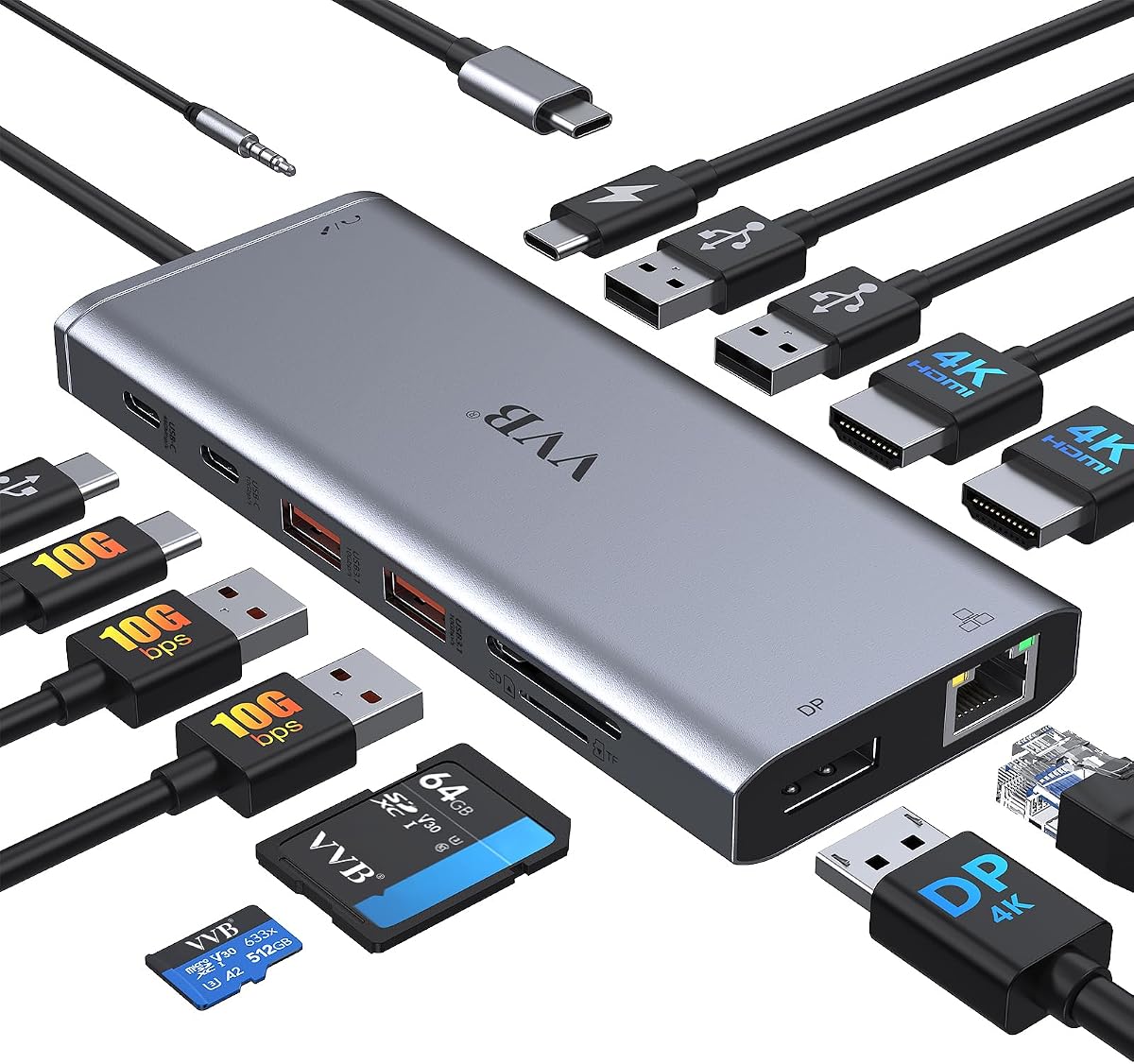
This 14-in-1 USB-C dock offers a broad collection of ports for Dell users who want one connection to handle monitors, storage, Ethernet, charging, and audio. Its 4.3 rating reflects a generally positive customer reception, while the specification sheet gives unusually detailed display-mode information.
We may earn a commission when you buy through this link, at no additional cost to you.
Video outputs include two HDMI ports and DisplayPort. A single HDMI or DisplayPort display can reach 4K60Hz, although the second HDMI port is listed at 4K30Hz. A two-monitor configuration can provide 4K30Hz and 1080p60Hz with DP 1.4, while three Windows displays are limited to 1080p. macOS supports only a single external monitor.
Data connectivity includes one USB-C port and two USB-A 3.1 ports rated at 10Gbps, a USB-C 2.0 port, two USB 2.0 ports at 480Mbps, a card reader, Gigabit Ethernet, and a 3.5mm audio jack. The USB-C Power Delivery input accepts up to 100W and safely outputs 87W to the laptop. The charging adapter and cable are not included.
The listed compatibility examples include several Dell Latitude, Inspiron, Vostro, and XPS models, but a converter is not supported for incompatible USB-C ports. This makes it a useful broad option for a compatible modern Dell computer, particularly when fast data and wired networking are priorities. Verify the exact laptop model and ensure you already have a suitable power adapter and cable.
The mix of 10Gbps and 480Mbps ports allows fast storage to coexist with basic peripherals. This separation is useful when a keyboard, mouse, and flash drive can share slower connections without reducing the speed of an external drive.
Maximum resolution changes according to the number of connected displays and the video standard of the host. Dell owners should match the dock's DP 1.4 requirement and the operating system limitations to their intended monitor arrangement.
We may earn a commission when you buy through this link, at no additional cost to you.
The Dell WD19S 180W is aimed at conventional business workstations that need dependable USB-C connectivity and high charging headroom. It combines a 180W power adapter with up to 130W of power delivery and offers USB-C, HDMI, and dual DisplayPort connections in a black enclosure.
We may earn a commission when you buy through this link, at no additional cost to you.
Its primary appeal is power. The generous adapter and 130W delivery rating offer more headroom than the 85W and 100W configurations found on many universal docks. That makes it a logical consideration for Dell Latitude, Precision, or other compatible business systems used in long, stationary sessions with several powered peripherals.
The dual DisplayPort and HDMI arrangement is familiar and useful for office monitors. The supplied product information is concise, however, so buyers looking for detailed port counts, supported resolutions, and physical dimensions should consult Dell's current compatibility documentation for their specific system. Its 3.8 rating is the lowest among the ten products here, which may warrant additional caution for technically demanding buyers.
Choose the WD19S when high power delivery and a traditional Dell docking experience matter more than portability or a highly compact footprint. Confirm the host laptop's supported USB-C display and charging capabilities, and verify that the included 180W adapter is appropriate for your region and outlet. It is less compelling for a simple dual-monitor home setup but well aimed at a powered office desk.
The combination of a 180W adapter and 130W power delivery provides generous capacity for a laptop that must remain powered while running displays and peripherals. It is especially relevant to business users who keep their systems connected throughout the workday.
Dual DisplayPort and HDMI outputs follow a familiar office pattern, making the dock straightforward to pair with standard monitors. Detailed resolution limits are not provided in the supplied listing, so model-level verification remains important.
We may earn a commission when you buy through this link, at no additional cost to you.
The Anker 13-in-1 is a compact, vertically oriented dock that offers an unusually broad port selection. It supports up to 85W of host charging, an 18W secondary charging port, 10Gbps USB-C data, Gigabit Ethernet, card readers, audio, and multiple display outputs.
We may earn a commission when you buy through this link, at no additional cost to you.
The display arrangement supports a single 4K60Hz monitor or three external displays at 1080p60Hz. On Windows 10, Windows 11, and ChromeOS with MST, extended triple-display operation is available. macOS can handle charging and data functions, but external monitors are limited to mirror mode. A full-featured USB-C port with DisplayPort Alternate Mode and Power Delivery is required.
The vertical design measures 4.9 by 3.5 by 1.6 inches and weighs 13.1 ounces, helping conserve desk space. A 135W power adapter is included, and the dock can charge the connected computer and a phone at the same time. USB-C data reaches 10Gbps, while SD-card reads are listed at 104MB per second.
This is a strong choice for compact offices needing three screens and a broad collection of peripheral connections. It is less suitable for creators who demand 4K on multiple panels, because the three-monitor ceiling is 1080p60Hz. For compatible Windows or ChromeOS Dell systems that need a tidy, vertically oriented desk station, it offers a balanced set of features and a lower-profile footprint than many full-size docks.
The upright enclosure offers a practical way to preserve desk space while supporting as many as three 1080p displays. This configuration suits monitoring dashboards, communication platforms, and general office multitasking.
The host can receive up to 85W while a phone receives up to 18W. A dedicated 10Gbps USB-C connection and fast card reader support workflows that involve frequent media movement.
We may earn a commission when you buy through this link, at no additional cost to you.
The Dell WD19 130W is a traditional business docking station built around USB-C connectivity, familiar office displays, and generous adapter power. It holds a 4.0 customer rating and offers a broad port selection for compatible Dell laptops used in fixed workspaces.
We may earn a commission when you buy through this link, at no additional cost to you.
Display connectivity includes two DisplayPort 1.4 outputs, HDMI 2.0B, and a USB-C multifunction DisplayPort port. Data and peripheral connections include USB-C 3.1 Gen 2, three USB-A 3.1 Gen 1 ports, a combo headset connection, separate audio output, and Gigabit Ethernet. The enclosure measures 8.1 by 3.5 by 1.1 inches and weighs 20.63 ounces.
Power is provided by a 130-watt AC adapter, while laptop power delivery is listed at 90W. That distinction matters: the adapter's wattage is not the same as the power available to charge the computer. The 90W host output is adequate for many business notebooks, though it may be less generous than docks offering 100W or more.
The WD19 remains appealing to users who value a straightforward Dell business dock, recognizable ports, and a stable desk footprint. Check the current compatibility information before purchase because the listing directs buyers to important model-specific details. It is especially suitable for older enterprise Dell deployments that align naturally with the dock's display, charging, and networking design.
Dual DisplayPort 1.4, HDMI 2.0B, USB-A, audio, and Gigabit Ethernet cover the standard needs of an office workstation. The layout is direct and familiar rather than optimized for compact travel.
The included 130W AC adapter supports the dock, while host charging is listed at 90W. Checking the actual charging output prevents surprises with high-power Dell notebooks or demanding peripheral combinations.
We may earn a commission when you buy through this link, at no additional cost to you.
The renewed WD19 provides a familiar Dell docking platform for compatible users who want a dual-monitor setup and a high-capacity adapter without necessarily buying a completely new unit. It carries a 4.1 rating and retains the core connectivity associated with the WD19 family.
We may earn a commission when you buy through this link, at no additional cost to you.
The listed connections include USB-C 3.1 Gen 2, three USB-A 3.1 Gen 1 ports with one supporting PowerShare, a combo headset connection, separate audio output, HDMI, and dual DisplayPort outputs. Dimensions are 8.1 by 3.5 by 1.1 inches, with a listed weight of 20.63 ounces. The package includes a 180W adapter and USB-C cables.
The renewed designation is the critical qualification. Appearance and signs of use can vary, so buyers should review the seller's condition description and warranty information. The listing also recommends updating dock firmware if compatibility problems occur, which can matter when pairing a renewed unit with a newer Dell system.
This model supports laptops compatible with USB-C DisplayPort or Thunderbolt 3, including select Inspiron, Venue, Precision, XPS, and Latitude systems. Check the exact model because the product description explicitly advises compatibility verification before purchase. For a buyer comfortable with renewed hardware, it offers a recognizable Dell dock, a substantial 180W adapter, and dual-monitor potential at a value-oriented alternative to the newer Pro WD25.
The selection of USB-C, USB-A, HDMI, DisplayPort, audio, and networking options is familiar to users of Dell business docks. This makes it a logical renewed option for an existing professional workspace.
A renewed unit may show cosmetic wear while still providing full functionality, but condition can vary by seller. Review the listing, return terms, and warranty, and update the dock firmware if the connected Dell laptop has any difficulty.
We may earn a commission when you buy through this link, at no additional cost to you.
The best dock is the one that matches your Dell laptop's physical ports, display intentions, power requirements, and workflow. Review protocol support and the included accessories before comparing features, because advertised monitor counts and charging figures often depend on the host system.
Most modern docking stations connect through USB-C, but not every USB-C port supports the same functions. A dock needs DisplayPort Alternate Mode for video output, while Power Delivery is required for host charging. Some Dell systems also expose different capabilities depending on the specific port, adapter, firmware, or processor configuration. Data-only USB-C ports cannot drive a monitor even when the dock itself includes HDMI and DisplayPort connectors.
Monitor count is only half the equation; resolution and refresh rate determine whether a dock feels truly capable. The products here range from dual 4K output to triple 1080p configurations, and one of them cannot drive a 5120×1440 monitor. Graphics capabilities, operating system support, cables, and display standards can reduce the listed maximum, so compare the exact monitor sizes and refresh rates you intend to use.
Charging figures may refer to adapter input, aggregate dock output, or power actually delivered to the laptop. The 87W and 90W options suit many mainstream Dell notebooks, while 100W offers more headroom for demanding systems. A dock rated for 160W may distribute that power among several connected devices rather than sending the entire amount to one computer.
External storage, memory cards, and other high-speed peripherals benefit from 5Gbps or 10Gbps connections. Basic keyboards and mice do not need that bandwidth, so docks can conserve faster ports for storage while assigning 480Mbps USB 2.0 connections to everyday accessories. Check the number of USB-A and USB-C data ports rather than relying only on the total port count.
Gigabit Ethernet can provide a stable, low-latency connection and may outperform congested Wi-Fi in a fixed office. A 3.5mm audio jack is useful for wired headsets, while SD and microSD readers are valuable for photographers and video editors. These features are not universal, so include them in your comparison if they solve a recurring part of your workflow.
Compatibility is more than a brand match. The HoDo dock excludes specific Dell Latitude, gaming, and ThinkPad generations, while the Anker Nano explicitly mentions Dell XPS support. Other official Dell docks may support select Inspiron, Latitude, Precision, Venue, and XPS systems depending on the dock generation. Always search for the exact model number and review the manufacturer's current support information.
A dock cannot deliver full performance with every cable and power supply. Some products include a high-capability USB-C cable and substantial adapter, while others require separate purchases. The 85W Anker dock needs a 100W PD wall charger and USB-C-to-C cable for charging, while the generic 14-in-1 dock does not include its charging cable or adapter. Missing accessories can add cost and inconvenience.
A permanent office dock can prioritize display flexibility, Ethernet, card readers, and multiple charging outputs, while a travel setup benefits from a compact body and a detachable hub. The Anker Nano addresses both needs, and the vertical Anker 13-in-1 saves desk space. Consider monitor stands, cable reach, speaker placement, and whether the dock will travel with the laptop.
Begin by identifying a full-featured USB-C port on the Dell laptop and confirming that it supports DisplayPort Alternate Mode, Power Delivery, and the data standard required by the dock. Connect the monitor cables first, then attach the upstream USB-C cable to the laptop. Connect the appropriate power adapter to the dock if the model requires a separate supply, and allow the operating system to configure the displays.
After the displays appear, set the primary screen, arrange the monitors, and select the desired resolution and refresh rate in the operating system's display settings. Connect peripherals individually so it is clear which device is using each USB port. For Ethernet, verify that the network link is active; for audio, choose the dock's 3.5mm output as the playback device. Update the dock firmware when the manufacturer provides a newer version, particularly for newly released Dell laptops.
Keep the dock's vents unobstructed and the enclosure away from liquids, direct heat, and concentrated sunlight. Coil cables loosely rather than tightly wrapping them at the connector. For travel, unplug the host cable before moving the system, and use the included case or a separate protective pouch. Periodically inspect the connector, cable, and power supply for wear, especially if the dock has been used in a high-traffic office.
No. The Dell laptop needs a full-featured USB-C port that supports DisplayPort Alternate Mode for monitor output and Power Delivery for charging. Some ports support only data or charging, and particular laptop generations have known limitations. Check the exact model specifications and the dock's compatibility list before purchasing.
That depends on the dock, the laptop's graphics capabilities, the connection standard, and the operating system. The Dell Pro WD25 lists native support for up to four high-resolution displays, while several universal docks support two or three external screens at reduced resolutions. Maximum specifications are not guaranteed for every Dell model.
The appropriate wattage depends on the laptop model, processor configuration, workload, and the peripherals connected through the dock. Docks in this guide provide host charging from 85W to 100W, with some able to charge several devices at once. Confirm the adapter requirement in Dell's documentation and leave reasonable power headroom.
Several of the listed docks are explicitly limited to Windows and ChromeOS, and some do not support Linux. The Anker 8-in-1 and Prime models state that they are not compatible with Linux, while their macOS behavior differs from Windows. Check the operating-system notes and display-mode restrictions for the exact product.
Most can drive a 4K display under the right conditions, but refresh rates vary. Some offer 4K60Hz on one display and 4K30Hz on two, while the Anker Prime lists dual displays up to 2K60Hz. The host's DP version, graphics capability, cables, monitor specifications, and operating system also influence the result.
It depends on the model. The Anker Nano includes a 10Gbps USB-C cable and 140W power adapter, and the Anker 13-in-1 includes a 135W adapter. The Anker 8-in-1 requires a 100W PD wall charger and USB-C-to-C cable for charging, while the generic 14-in-1 listing says its charging cable and adapter are not included.
Official Dell docks tend to provide clearer alignment with business laptop support, familiar manageability, and established workstation layouts. Universal docks can offer better value, more charging flexibility, or detachable portability. The better choice depends on your exact Dell model, supported displays, included accessories, and how much you value one-cable simplicity.
First confirm that the laptop port supports DisplayPort Alternate Mode and that the dock is connected directly rather than through an unlisted adapter. Update the dock firmware, reconnect the upstream cable, and reboot the computer. In display settings, choose the extended mode rather than mirror, then select a supported resolution for each monitor.
The Dell Pro WD25 is the most complete recommendation for a modern multi-display workstation, combining native support for up to four high-resolution displays, up to 100W of charging, and useful cable-routing details. The Anker 8-in-1 PD stands out as the value-focused choice for a straightforward two-monitor desk, while the Anker Prime 14-in-1 offers the strongest multi-device charging and fast data performance.
For other needs, the HoDo and generic 14-in-1 docks provide broad video and peripheral choices, the Anker Nano serves users who want desktop and travel hardware, and the Anker 13-in-1 favors a compact vertical design. Official Dell WD19 options remain relevant for business users, while the renewed WD19 offers a value-oriented path to familiar Dell connectivity. Prioritize the exact laptop compatibility, host charging output, display resolution, and included cable before any other feature.
Prices, availability, firmware, and retailer listings can change, so confirm current details directly on the product page before buying. Also check whether the seller includes the required upstream cable and power adapter, and read the latest compatibility guidance for your precise Dell model. With those checks in place, the right dock can deliver a cleaner desk and a more capable daily workflow.

