
Motherboard USB 2.0 to Type C Front Panel Cable
4.8Editor score
480Mbps USB 2.0 speed
9-pin motherboard connector
17cm cable length
No driver installation
Front panel USB C headers bring a modern USB-C connection to the outside of a desktop case, making phones, storage devices, cameras, and other compatible peripherals easier to reach. A good adapter should match the motherboard header, provide the intended transfer speed, mount securely, and route cables without obstructing other components.
This guide compares ten front panel USB C header and adapter options based on stated connector types, supported USB generations, cable or bracket design, motherboard requirements, and installation method. It covers single USB-C adapters, combined USB-C and USB-A extensions, internal hub assemblies, PCIe expansion cards, and a lower-speed option for older systems.
Each product occupies a different practical niche, from adding one panel connector to converting an unused drive bay into several front ports. Ratings and specifications reflect the supplied product information, while availability and prices can change. Buyers should verify their motherboard headers and case layout before making a selection.
4.8Editor score

4.6Editor score

5.0Editor score
As an Amazon Associate we earn from qualifying purchases.
The table below compares all ten options by their native connection type, stated transfer capability, mounting approach, and key installation requirement. These distinctions matter because a USB-C connector alone does not guarantee high-speed data, and the correct internal motherboard header determines whether an adapter can be installed directly.



This GRAUGEAR adapter converts a 20-pin USB 3.2 Type-E Key-A motherboard header into a panel-mounted USB-C female connector. It carries a 4.6 rating and is designed around USB 3.2 Gen2x2 performance of up to 20Gbps, making it a strong choice for builds that need a fast front USB-C connection without replacing the entire case panel.
We may earn a commission when you buy through this link, at no additional cost to you.
The adapter uses high-speed wiring and double-shielded EMI/EFI construction intended to support stable signal transmission. Its metal construction adds rigidity, while the 23.6-inch cable provides enough reach for routing from the motherboard header to the front of a typical desktop case. The included PCIe bracket offers an alternative way to secure the panel connector when the case does not provide a suitable opening.
The important limitation is motherboard compatibility. The product requires a 20-pin USB 3.2 Key-A Type-E header, and the supplied information specifically notes that some older motherboards lack it. Achieving the stated 20Gbps also requires a compatible host controller and connected device; the connector alone cannot upgrade the capabilities of the entire system.
This is a sensible recommendation for builders with a modern Type-E-equipped motherboard who want one front USB-C port at the highest stated speed among the reviewed adapters. It suits users who value a straightforward extension cable, physical robustness, and broad device compatibility more than a multi-port hub or additional USB-A connector.
The adapter supports USB 3.2 Gen2x2 at up to 20Gbps and remains compatible with Gen2 and Gen1 USB versions. Actual throughput depends on the motherboard controller, connected device, and cable path, so verifying the host hardware is essential.
A long cable can reach the front panel from the motherboard header, and the PCIe bracket provides a mounting option for the female socket. Buyers should check case clearance and bracket alignment before routing the extension.
We may earn a commission when you buy through this link, at no additional cost to you.
This second GRAUGEAR model offers another route to a 20Gbps panel-mounted USB-C connection. It uses a 23.6-inch, or 60-centimeter, Type-E-to-USB-C extension cable and has a 4.6 rating. The design is intended for motherboards with a 20-pin USB 3.2 Key-A Type-E header.
We may earn a commission when you buy through this link, at no additional cost to you.
Its principal advantage is focused performance: the extension supports USB 3.2 Gen2x2, Gen2, and Gen1 operation, with up to 20Gbps available when the motherboard and attached device support that mode. Double shielding and sturdy metal construction are listed as measures that improve signal stability and durability.
It does not add a USB-A socket or transform a 3.5-inch drive bay into a hub. Consequently, it is most appropriate when the goal is specifically to expose one USB-C port at the front of the chassis and the case already has a suitable aperture or bracket position for the female connector.
The product is a practical choice for compatible modern builds, particularly those unable to use the case's native front USB-C wiring. As with every 20Gbps adapter in this guide, users should not expect full speed when the motherboard lacks the required Type-E header or dedicated high-speed host support.
This adapter concentrates on one high-speed USB-C output rather than adding multiple connectors. That makes it easier to fit into cases with limited front-panel space and suitable for users who primarily need fast access to storage or peripherals.
Support for Gen2 and Gen1 USB modes broadens device compatibility. The motherboard header remains the deciding factor, while the connected device determines the final connection mode and transfer speed.
We may earn a commission when you buy through this link, at no additional cost to you.
This GRAUGEAR adapter combines a 20Gbps panel-mounted USB-C female connector with a separate USB-A female connector. It has a 4.6 rating and uses both a 20-pin USB 3.2 Type-E Key-A header and a 19-pin USB 3.0 header. That combination makes it one of the more versatile adapters for modern builds with both connections available.
We may earn a commission when you buy through this link, at no additional cost to you.
The USB-C side supports USB 3.2 Gen2x2 at up to 20Gbps, while the USB-A connection supports USB 3.0 transfer at 5Gbps. Both are backward-compatible with USB 2.0. Including two panel sockets gives users a practical way to keep frequently used devices connected without reaching around to rear ports.
The tradeoff is installation complexity. The motherboard must provide both required headers, and the supplied information warns that some older boards do not have the 20-pin Type-E connection. Users must also position two panel sockets securely, with the PCIe bracket assisting with the USB-C mounting point.
This is a strong recommendation for a builder who wants both modern USB-C and legacy USB-A access on the front panel. It offers more flexibility than a single-port extension while remaining less space-intensive than a full internal hub. Confirm both motherboard headers and available case apertures before buying.
Adding USB-A alongside USB-C helps accommodate older peripherals without relying entirely on adapters. The USB-A side remains a 5Gbps connection, so newer devices should use the USB-C port for maximum speed.
This design provides flexibility only when the motherboard has both a Type-E and a 19-pin USB 3.0 header. Builders should inspect the manual and physically confirm the connectors before installation.
We may earn a commission when you buy through this link, at no additional cost to you.
This GRAUGEAR assembly converts a 3.5-inch floppy drive bay into a four-port front hub containing two USB-C ports and two USB 3.2 Gen2 ports. Each port is listed at up to 10Gbps, and the unit has a 4.2 rating. It is aimed at desktop builders who want more front-panel capacity than a single extension can provide.
We may earn a commission when you buy through this link, at no additional cost to you.
Installation uses a 20-pin USB 3.2 Key-A Type-E header plus a 15-pin SATA power connector. The metal hub includes six screws for stability and lists over-current, over-voltage, and short-circuit protection. It is compatible with the supplied Windows 7, 8, 10, and 11 system information.
Its principal limitation is speed. Although it offers two USB-C sockets, neither is described as a 20Gbps Gen2x2 port. The design is also more involved than a single adapter because it needs both the correct motherboard header and SATA power, plus sufficient clearance in the selected drive bay.
This is a good fit for maximizing accessible ports in a case with an unused 3.5-inch bay. Users who need only one connector may find it excessive, while those who regularly attach several peripherals will value the four-port layout. Check bay depth, power availability, and the required headers before ordering.
The hub efficiently uses a single 3.5-inch opening to provide two USB-A and two USB-C sockets. This makes it useful for compact builds that need more front access but lack room for a larger dedicated panel.
SATA power supplies the hub, while listed over-current, over-voltage, and short-circuit protection add safeguards. Secure mounting with the supplied screws helps reduce movement and accidental disconnection.
We may earn a commission when you buy through this link, at no additional cost to you.
The Sinefine expansion card creates front USB-C and USB-A access from a PCIe x1 slot or larger. It carries a 4.5 rating and is listed for USB 3.2 Gen1 transfer at up to 5Gbps. Unlike a motherboard-header adapter, this approach can add front connectivity when suitable internal headers are unavailable.
We may earn a commission when you buy through this link, at no additional cost to you.
Its 19-pin socket accepts the corresponding internal front-panel wiring, allowing the case's existing connector to reach the card. Installation involves powering down the system, opening the case, inserting the card into a free PCIe slot, and securing it with the included screw. No external power adapter is required.
Compatibility information covers Windows 7, 8, 10, and 11, along with Ubuntu 20.04 and Linux Mint, but the supplied details note driver requirements for certain older systems and possible limitations on some Dell motherboard configurations. Users should treat the listed operating-system support as guidance rather than a blanket guarantee for every configuration.
This card is a practical solution for a case with an unused PCIe slot and a front panel that already uses a 19-pin USB connector. Its 5Gbps ceiling is modest compared with the 20Gbps adapters in the guide, but the PCIe installation route can be decisive when Type-E motherboard headers are absent.
The PCIe card creates a route for front-panel wiring even when the motherboard lacks a Type-E header. This makes it useful for older or unusual builds where a direct Type-E extension cannot be installed.
The card uses voltage-regulating capacitors and does not require a separate external power supply. Actual data performance remains limited by the USB 3.2 Gen1 specification and the connected devices.
We may earn a commission when you buy through this link, at no additional cost to you.
This GRAUGEAR 3.5-inch hub provides one USB 3.2 Gen2x2 USB-C port and two USB 3.0 ports, giving users three front connectors in a compact assembly. It has a 4.6 rating and is designed for desktops with a 20-pin Type-E Key-A header and a 19-pin USB 3.0 header.
We may earn a commission when you buy through this link, at no additional cost to you.
The USB-C connection can operate at up to 20Gbps when the motherboard offers the required high-speed support, while each USB-A port is listed at 5Gbps. That division makes it useful for combining a fast USB-C device with legacy peripherals. The hub also includes six screws and listed over-current, over-voltage, and short-circuit protection.
It uses more of the case than a single bracket-mounted adapter and demands more internal connections. The supplied description references a 19-pin USB 3.0 header for operation, while the complete package includes Type-E and USB 3.0 cables. Older boards without the 20-pin Type-E header are specifically called out as incompatible without another adapter or PCIe solution.
This is a balanced pick for builders who want multiple front ports and one high-speed USB-C connection. It is especially appropriate when a 3.5-inch bay is available but a larger hub would be excessive. Verify physical bay space, the required motherboard headers, and the appropriate internal power connection before installation.
One 20Gbps-capable USB-C port serves modern high-bandwidth devices, while two USB-A ports cover keyboards, mice, flash drives, and other conventional accessories. The division of speeds keeps each use case clear.
The hub turns an unused 3.5-inch opening into a functional front panel. Buyers should inspect depth and surrounding components, as larger graphics cards, drive cages, or cable bundles can restrict access.
We may earn a commission when you buy through this link, at no additional cost to you.
This compact adapter creates a front-panel USB-C connection from a motherboard's 9-pin USB 2.0 header. It has a 4.8 rating, the highest in the group, and offers the simplest route to USB-C access for an older motherboard. The approximately 17-centimeter cable is designed for relatively close internal routing.
We may earn a commission when you buy through this link, at no additional cost to you.
Its performance is intentionally basic. The stated maximum transfer rate is 480Mbps under USB 2.0, making it suitable for mice, keyboards, flash drives, and other peripherals that do not need high-bandwidth storage performance. Installation is plug-and-play, with no drivers or software required.
Compatibility boundaries are important. The product does not work with a 19-pin USB 3.0 header, does not provide USB 3.0 speed, and does not support video or audio output. It is therefore a functional front connector rather than a solution for demanding external storage, displays, or other high-speed workflows.
This is a good budget recommendation when the motherboard offers a 9-pin USB 2.0 header and the case lacks a native front USB-C port. It is not suitable for users who want 10Gbps or 20Gbps performance. Confirming the header pin count and accepting USB 2.0 speeds keeps the installation straightforward.
The 9-pin USB 2.0 header is found on many older boards that lack modern Type-E connections. This adapter fills that gap with a front USB-C socket without requiring a PCIe card or separate power supply.
At a maximum of 480Mbps, the cable is best for everyday peripherals. Fast SSDs, high-resolution webcams, and display adapters should be connected through a faster USB-C implementation.
We may earn a commission when you buy through this link, at no additional cost to you.
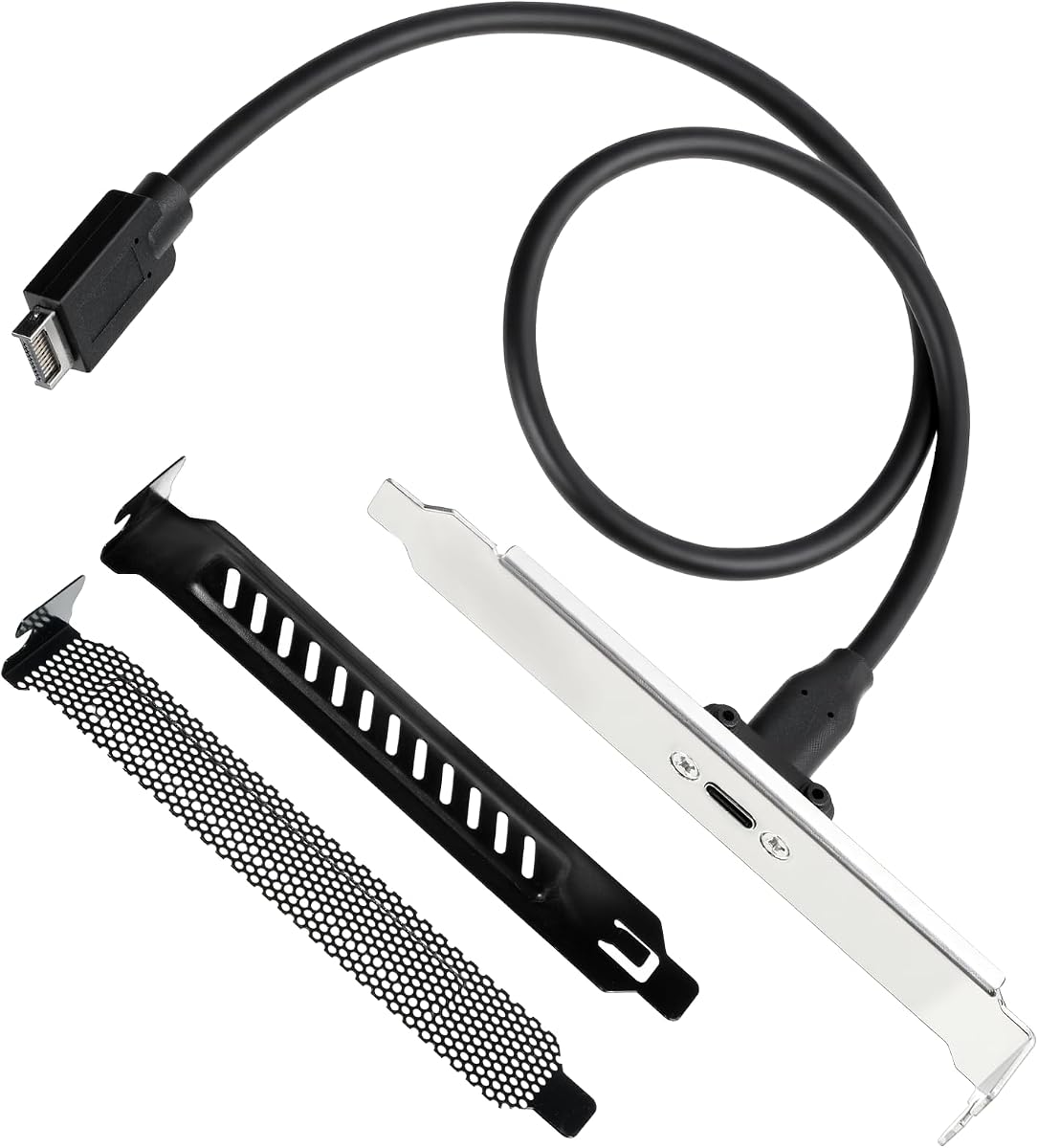
This panel-mount adapter connects a USB-C female socket to a 20-pin USB 3.2 Type-E A-Key male motherboard header. It supports USB 3.2 Gen2x2 transfer up to 20Gbps and includes a metal PCIe bracket, two PCI slot covers, and a 50-centimeter cable.
We may earn a commission when you buy through this link, at no additional cost to you.
Its installation details are straightforward. The internal connector is clearly labeled to help users establish the correct orientation, while the bracket and covers offer ways to secure the socket and protect unused slot openings. The cable uses metal and PVC components and is described as flexible and resistant to bending.
The product requires a dedicated USB 3.2 Gen2x2 host controller to reach its stated maximum speed. Its 3.8 rating is the lowest among the reviewed options, so buyers may encounter more mixed experiences. The listing also contains some inconsistent wording around the stated USB generation, so buyers should treat the explicit 20Gbps claim cautiously and verify the motherboard specification.
Despite that caution, the adapter remains useful for compatible systems that need one front USB-C port and a 20-pin Type-E header. It is best suited to a builder willing to verify hardware support closely. The included mounting pieces make it more installation-ready than a loose extension cable.
Labeling on the Type-E plug helps reduce the risk of incorrect insertion. Buyers should also consult the motherboard manual because visually similar headers may use different pin arrangements.
The metal bracket, two slot covers, and long cable provide several practical installation elements. They help the connector remain fixed while keeping unused expansion openings covered.
We may earn a commission when you buy through this link, at no additional cost to you.
The SinLoon extension converts a 20-pin Type-E motherboard header into a panel-mounted USB-C female port. It carries a 4.3 rating and supports USB 3.2 Gen2 transfer at up to 10Gbps. The reversible connector simplifies everyday use, while the 30-centimeter cable offers a relatively compact route.
We may earn a commission when you buy through this link, at no additional cost to you.
Its construction emphasizes flexibility and signal quality. The flat TPE cable can be bent and folded repeatedly according to the supplied information, and double shielding is intended to stabilize transmission. Silver-plated conductors are also listed, along with 16 pins and four high-speed signal cables.
Two installation conditions stand out. The motherboard must have the appropriate USB 3.1 Type-E header, and the case's panel opening must have 20mm screw spacing for the mounting hardware. The listing also mentions support for power delivery functions up to 100W, although actual charging behavior depends on the motherboard, device, and power configuration.
This is a good option for builders who want a straightforward 10Gbps front USB-C port but do not need Gen2x2 performance. Its short, flexible cable and panel screw simplify external connection. Verify both header and mounting-hole spacing, and do not assume the stated charging capability applies equally to every connected device.
The reversible USB-C socket removes the need to orient the plug carefully. The flat cable can follow tight routes around drive cages or motherboard components more easily than a bulky round cable.
A compatible Type-E header is essential, and the case must provide the stated 20mm mounting spacing. Checking both details before purchase can prevent the need for additional mounting hardware.
We may earn a commission when you buy through this link, at no additional cost to you.
This adapter combines one panel-mounted USB-C port with two USB-A connections and has the highest listed rating in the group at 5.0. It uses a 20-pin Type-E Key-A header and a 19-pin USB 3.0 header, allowing a compatible motherboard to gain convenient front access to several device types.
We may earn a commission when you buy through this link, at no additional cost to you.
Its USB-C connection supports USB 3.2 Gen2x2 at up to 20Gbps when the motherboard has a dedicated high-speed controller. The USB-A side operates at USB 3.0 speeds of up to 5Gbps and remains backward-compatible with USB 2.0. This arrangement creates a useful division between a high-speed modern port and conventional accessory connections.
The hardware is described as metal construction with double-shielded EMI/EFI wiring for stability and durability. A PCIe bracket is included to help mount the panel connector. As with other combined adapters, installation depends on having both internal motherboard headers, so older boards may require a different solution.
This product is a premium recommendation for a modern desktop that lacks usable front USB-C access but offers both Type-E and 19-pin headers. It offers the most balanced combination of speed and connector variety in the guide. Physical inspection, correct header identification, and case-space checks remain essential before installation.
The adapter serves modern USB-C devices and conventional USB-A peripherals through one extension assembly. Two USB-A sockets make it more convenient than a single-port model when several accessories are used regularly.
Metal components and double shielding are intended to improve durability and reduce interference. The 20Gbps claim still depends on compatible motherboard and device support, so it should not be treated as a universal system upgrade.
We may earn a commission when you buy through this link, at no additional cost to you.
The right front panel USB C header depends on motherboard headers, desired speed, available mounting space, and the number of external ports needed. Reviewing these factors before ordering prevents incompatible connectors, inadequate bandwidth, and awkward case routing.
The internal connector is the most important compatibility check. Modern high-speed adapters generally use a 20-pin USB 3.2 Key-A Type-E header, while some hubs also require a 19-pin USB 3.0 header. The budget cable in this guide instead connects to a 9-pin USB 2.0 header. These are not interchangeable, and the physical appearance of a USB header is not enough to identify it. Consult the motherboard manual or inspect the connector and its printed label before purchasing.
In summary, match the exact motherboard header first. If the required header is missing, look for a compatible adapter card or PCIe solution rather than forcing a cable designed for another pin arrangement.
Front-panel adapters range from USB 2.0 at 480Mbps to USB 3.2 Gen2x2 at 20Gbps. A USB-C shape does not indicate the supported transfer rate. The 9-pin adapter is appropriate for basic peripherals, while Gen2 adapters target 10Gbps use and Gen2x2 products target 20Gbps high-bandwidth devices. The motherboard controller, connected device, and complete signal path must all support the selected mode.
In summary, choose speed according to the devices you expect to connect. For external storage or other demanding workflows, verify that both the motherboard and peripheral support the advertised USB generation.
A single USB-C extension offers the simplest installation and lowest space requirement. Combined adapters add USB-A sockets for legacy accessories, while drive-bay hubs provide three or four front ports. Consider how many peripherals you realistically connect at once, and whether USB-A remains important for keyboards, mice, flash drives, or legacy equipment. More ports also mean more internal wiring and potentially more demanding installation requirements.
In summary, match port count to actual usage. A single fast USB-C port may be enough for one workstation setup, while a hub is better for frequently connected accessories.
Front panel adapters use one of three common mounting approaches. A panel-mounted female socket requires an existing case opening with suitable screw spacing. A PCIe bracket can secure a socket to an expansion slot or cover. Drive-bay hubs occupy a 3.5-inch bay and are useful in cases with an unused floppy position. Check available depth, nearby drives, graphics cards, fans, and cable paths before selecting the form factor.
In summary, inspect the empty case before ordering. Match the adapter's mounting method to an available opening and leave enough clearance for the connector, screws, and routed wires.
Some adapters use only one motherboard header, while combined front-panel products may require both a Type-E and a 19-pin USB 3.0 header. Internal hubs may also require power from a SATA connector or another source. The more connections a product uses, the more dependent it becomes on the specific motherboard layout. A PCIe expansion card can offer an alternative when a direct Type-E header is unavailable, although it consumes a slot and may still rely on the case's front-panel wiring.
In summary, make a complete list of required data and power connections. A product that fits the case but lacks a necessary motherboard or power connector is not ready to install.
Cable length determines whether the panel socket can reach the motherboard header without pulling or sharply bending the wires. The reviewed extension cables range from approximately 17 centimeters to 23.6 inches, with another option measuring 50 centimeters. Longer is not always better: excess cable can interfere with airflow or make management harder. Measure the intended route, consider service-loop space, and keep connectors away from sharp metal edges.
In summary, choose a length that comfortably reaches the intended location. Leave enough slack to close the case, but avoid bundling unused excess around hot components.
Durability matters in a desktop case because internal cables and sockets may be handled during upgrades. Metal construction, shielding, and flexible cable jackets are useful features. Products that list over-current, over-voltage, and short-circuit protection provide additional safeguards, especially for hub assemblies connected to several devices. Build quality does not replace correct installation, so connectors should remain fully seated and cables should not be pinched.
In summary, favor rigid connectors, protected wiring, and listed electrical safeguards. Install without sharp bends or forced insertion to preserve component longevity.
Begin with the computer powered off and disconnected from its power source. Open the case, locate the correct motherboard header, and compare its shape and pin count with the connector supplied with the adapter. Remove any conflicting drive-bay cover or expansion-slot hardware, then connect the internal cable with the correct orientation. If the product uses a PCIe bracket or occupies a drive bay, secure it with the appropriate screws before proceeding.
Route the cable behind the motherboard tray or along an unobtrusive case channel. Keep the connector and cable away from sharp case edges, hot components, and moving fans. Do not force a plug into a header that does not align, and never force the case panel or bracket if its holes differ from the adapter's spacing. Once all connections are secure, reinstall the case cover and perform a power-on check.
After installation, connect a known compatible USB-C device and confirm that the system recognizes it. If it does not appear, reseat the internal connector, verify that the device and motherboard support the same USB generation, and check whether the system requires a restart. For long-term care, avoid frequently tugging the panel connector, keep dust away from the socket, and inspect the cable for pinching or damaged shielding whenever the case is opened.
Most 10Gbps and 20Gbps adapters reviewed require a 20-pin USB 3.2 Key-A Type-E header. The budget USB 2.0 cable instead uses a 9-pin USB 2.0 header, and several combined products also require a 19-pin USB 3.0 header. Check the motherboard manual and the physical connector before ordering. A similarly shaped USB header may have a different pin count and must not be forced into the adapter.
No. The adapter's stated generation is only the maximum it can support. Full 20Gbps operation also requires compatible USB 3.2 Gen2x2 support in the motherboard host controller and the connected device, plus a complete high-speed signal path. On a motherboard with only USB 3.0 or USB 2.0 support, the connection may work at a lower speed or may not function as intended.
Not directly. A 19-pin USB 3.0 header and a 20-pin Type-E header have different connector arrangements and intended roles. The 9-pin USB 2.0 adapter specifically is not compatible with a 19-pin USB 3.0 header. For a 19-pin system, consider a product designed around that header or a PCIe expansion card that provides a compatible internal socket and front-panel connection.
Charging and display support depend on the motherboard, adapter, cable, and connected device rather than the USB-C connector alone. The SinLoon listing states support for up to 100W power delivery, but that capability is not automatically available on every system. The USB 2.0 adapter explicitly does not support video or audio output. Check motherboard documentation and the specifications of the selected product before relying on these functions.
A drive-bay hub is better when the case has an unused 3.5-inch bay and the user wants several front ports. It can provide multiple USB-C and USB-A connections in one assembly. A single-panel adapter is usually simpler, uses less space, and may expose a faster USB-C port. The better choice depends on port count, required bandwidth, available case space, and available motherboard headers.
Yes, if the motherboard has the required internal header. The direct Type-E adapters connect to a 20-pin motherboard header and use the included bracket only to mount the panel socket, not to communicate through a PCIe slot. A PCIe expansion card is an alternative for systems without a compatible Type-E header, but it occupies an expansion slot and may also use the case's existing 19-pin front wiring.
Measure the diameter of the panel opening and the spacing between its mounting holes. The SinLoon model specifies 20mm panel screw spacing, while other bracket-mounted adapters may use a different arrangement. Also check whether a motherboard tray, drive cage, radiator, or internal fan blocks the front area. If no opening matches, a 3.5-inch bay hub or PCIe-bracket option may be more practical.
The final speed is limited by the slowest supported component in the connection. A 20Gbps adapter can fall back to 10Gbps, 5Gbps, 480Mbps, or another mode when the motherboard, device, or intermediate wiring does not support the faster standard. Check the motherboard specification, confirm the device's USB-C capabilities, and use a direct connection rather than an additional hub when testing maximum performance.
The USB 2.0 to Type C Front Panel Cable stands out as the straightforward budget choice for a motherboard with a 9-pin USB 2.0 header, although its 480Mbps limit suits only basic peripherals. The GRAUGEAR USB-C and USB Front Panel Adapter offers a more versatile premium-style setup with 20Gbps USB-C capability, a USB-A connection, and a PCIe bracket, provided both required headers are present.
When prioritizing speed, look for USB 3.2 Gen2x2 support and confirm that the motherboard includes a 20-pin Type-E header. When port count matters, the GRAUGEAR 3.5-inch hubs provide three or four front connectors from a drive bay. The Sinefine PCIe card offers another installation strategy for systems where a suitable motherboard header is unavailable but a PCIe slot and compatible case wiring are present.
Before making a final selection, verify the exact internal connectors, case mounting points, available drive bays or expansion slots, required power, and the speed supported by the devices you plan to attach. Product ratings and specifications can change over time, while prices and availability fluctuate, so checking the current listing before purchase is essential.